Complete guide

How to use Daylytix

Everything in the product, in the order you will meet it: what to set up first, how to run an audit, what every section of the report means, and how to turn it into something you send a client.

Read time ~12 minutes
Screenshots throughout
Step 1

What needs setting up, and what does not

Start here, because it decides how much of the report you will actually see on your first run.

Works immediately — no setup
Crawling and indexability, titles and meta descriptions, heading structure, word count and readability, duplicate content, canonicals, hreflang, redirect chains and loops, internal linking, orphan pages, PageRank distribution, crawl traps, schema validation, accessibility, image checks, security headers, mobile usability, and the AI-readability and entity checks.
This is the bulk of the audit. Roughly two thirds of the checks need nothing at all.
Your Google accounts — free
Search Console brings queries, clicks, impressions, average position, CTR gaps, cannibalisation and content decay. GA4 brings sessions, engagement and bounce per page.
Without them the audit still runs; you simply lose the demand side of the picture.
Paid keys you bring yourself
DataForSEO unlocks true SERP positions, search volume, keyword difficulty, competitor discovery and the keyword gap. An AI provider (Gemini, Claude or OpenAI) unlocks the writing tools, schema generation, the audit narrative and AI Chat.
You register with those providers and they bill you directly, so there is no markup here.
Why bring your own keys? Because otherwise the price would have to include a data allowance you may never use. DataForSEO is pay-per-use and starts with a trial credit; a handful of audits costs cents rather than a subscription. Your keys are stored against your account alone and are never used for anyone else’s audits.
Step 2

Settings, tab by tab

Open Settings from the top right. Eight tabs, each with a Test button so you learn immediately whether a key works.

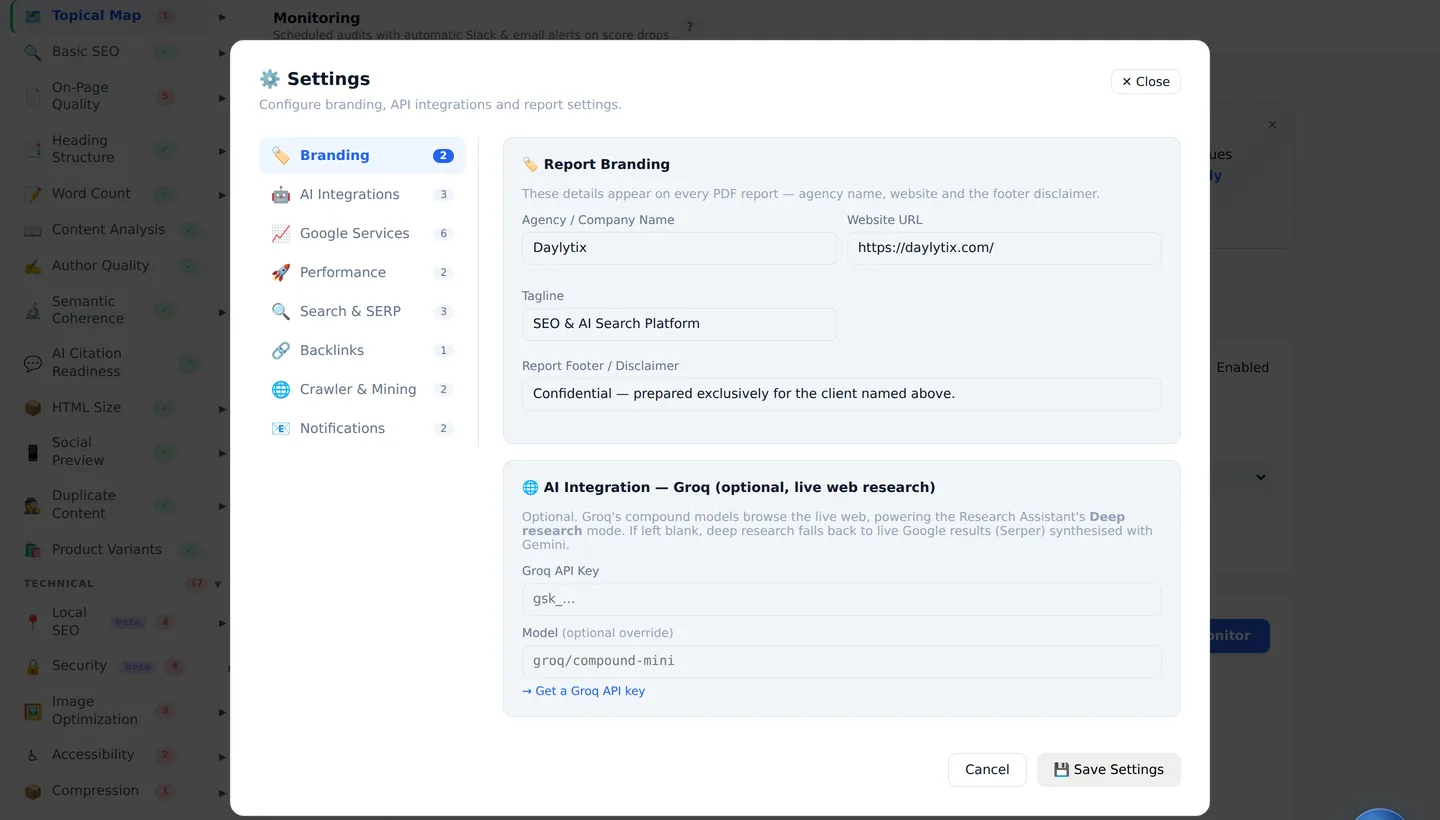
Daylytix Settings, Branding tab: agency name, website, tagline and report footer
Branding. Your agency name, website, tagline and report footer. These appear on every PDF and PowerPoint you generate, so fill them in before the first client report.
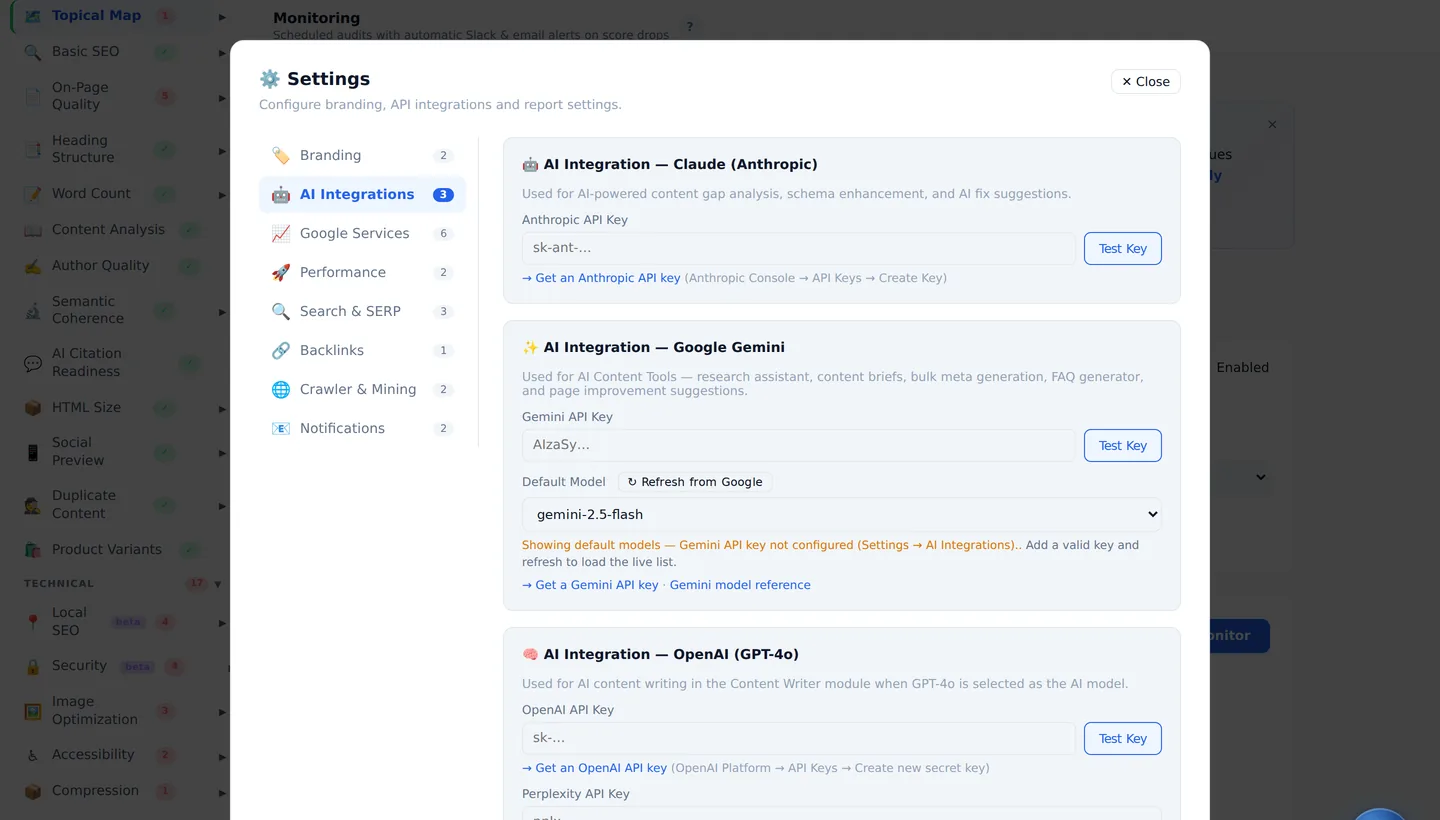
Daylytix Settings, AI Integrations tab with Gemini, Claude and OpenAI key fields
AI Integrations. One key from Gemini, Claude or OpenAI is enough. This switches on the content writer, schema generation, the plain-English audit narrative and AI Chat.
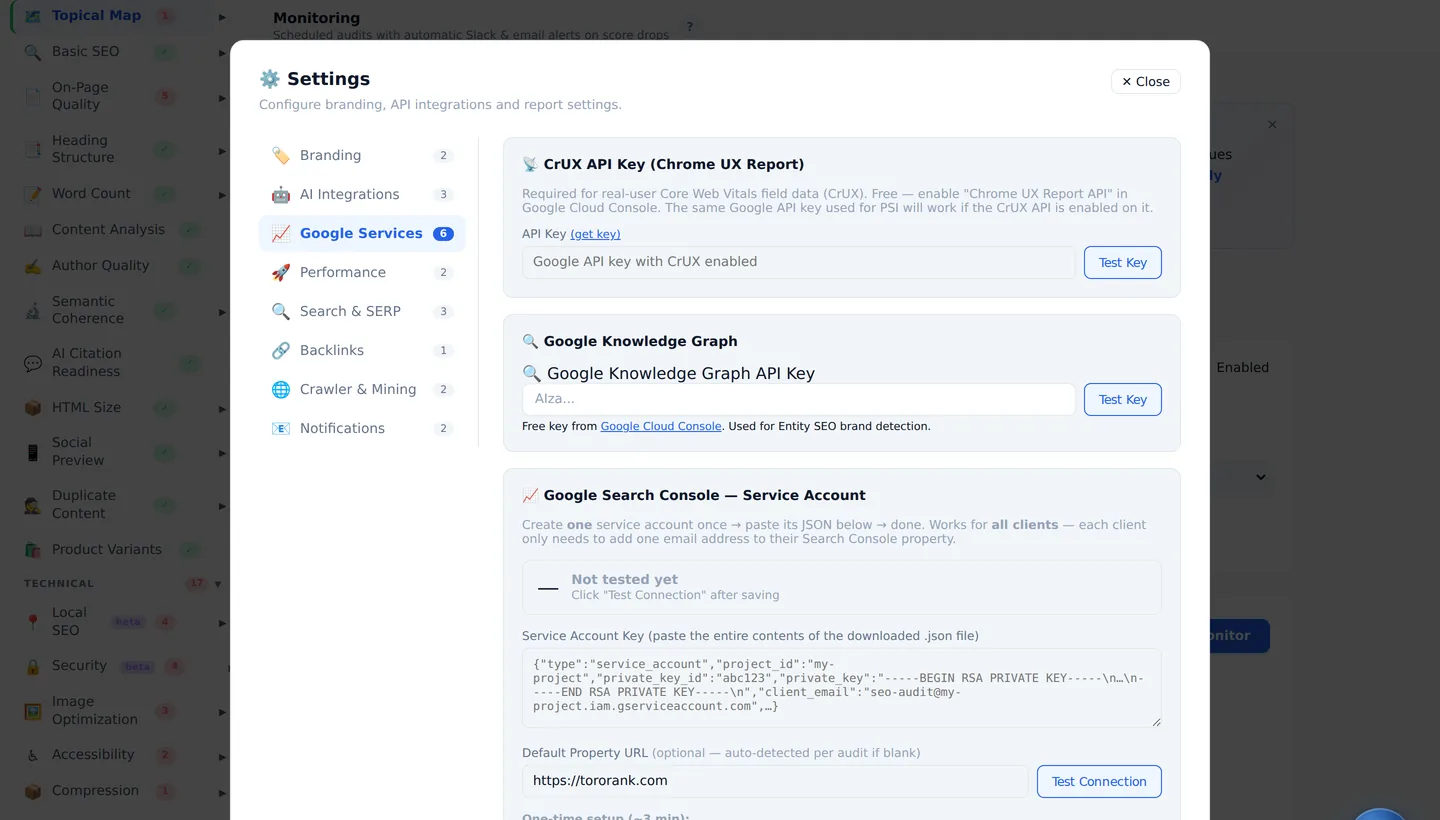
Daylytix Settings, Google Services tab for Search Console and GA4
Google Services. Connect Search Console and GA4 here, or sign in with Google straight from the audit form. A service account works too if you manage many client properties.
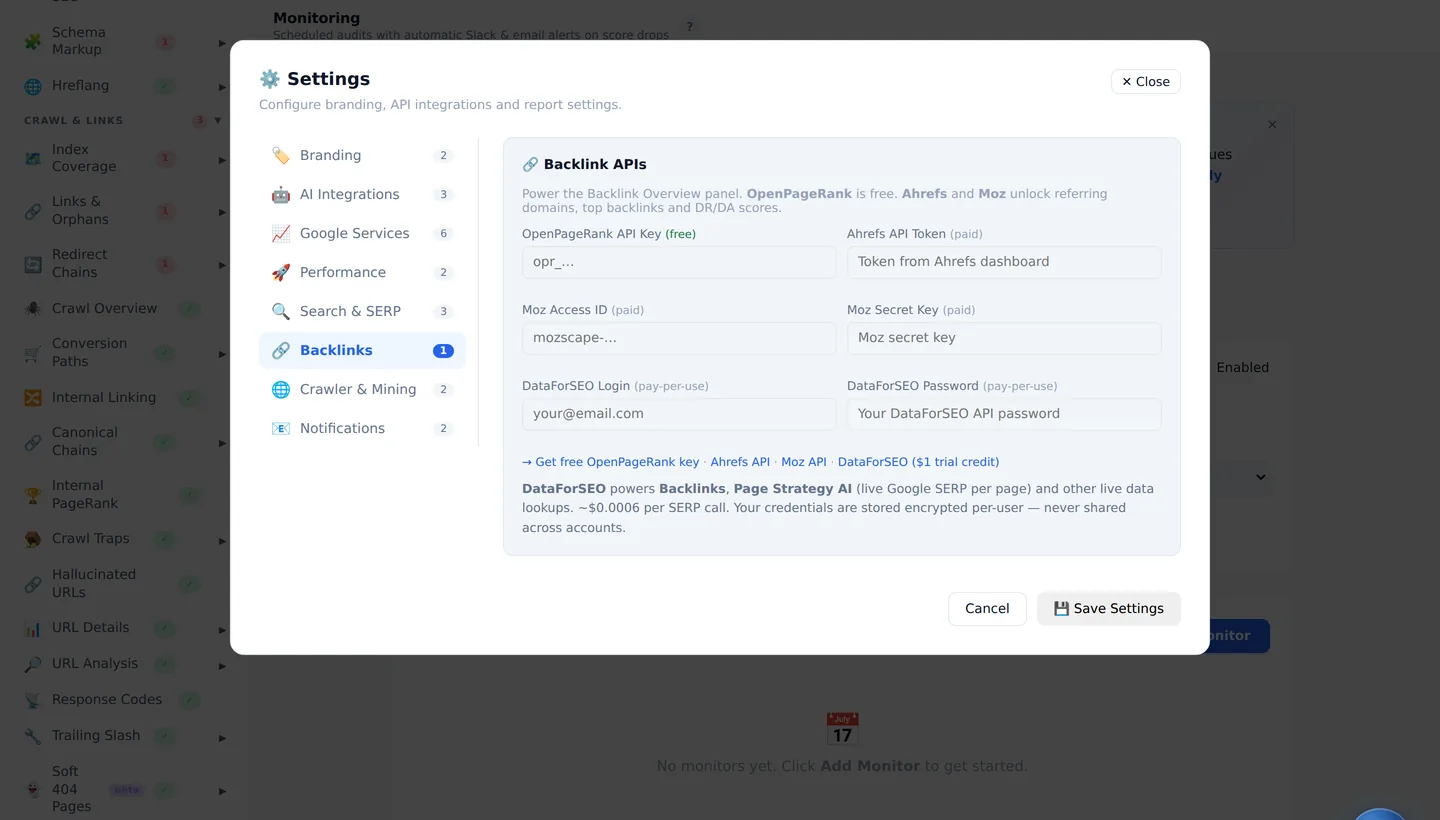
Daylytix Settings, Backlinks tab showing the DataForSEO login and password fields
Backlinks. Your DataForSEO login and API password. This single pair powers backlinks, SERP positions, keyword volume and difficulty, competitor discovery and the content gap.
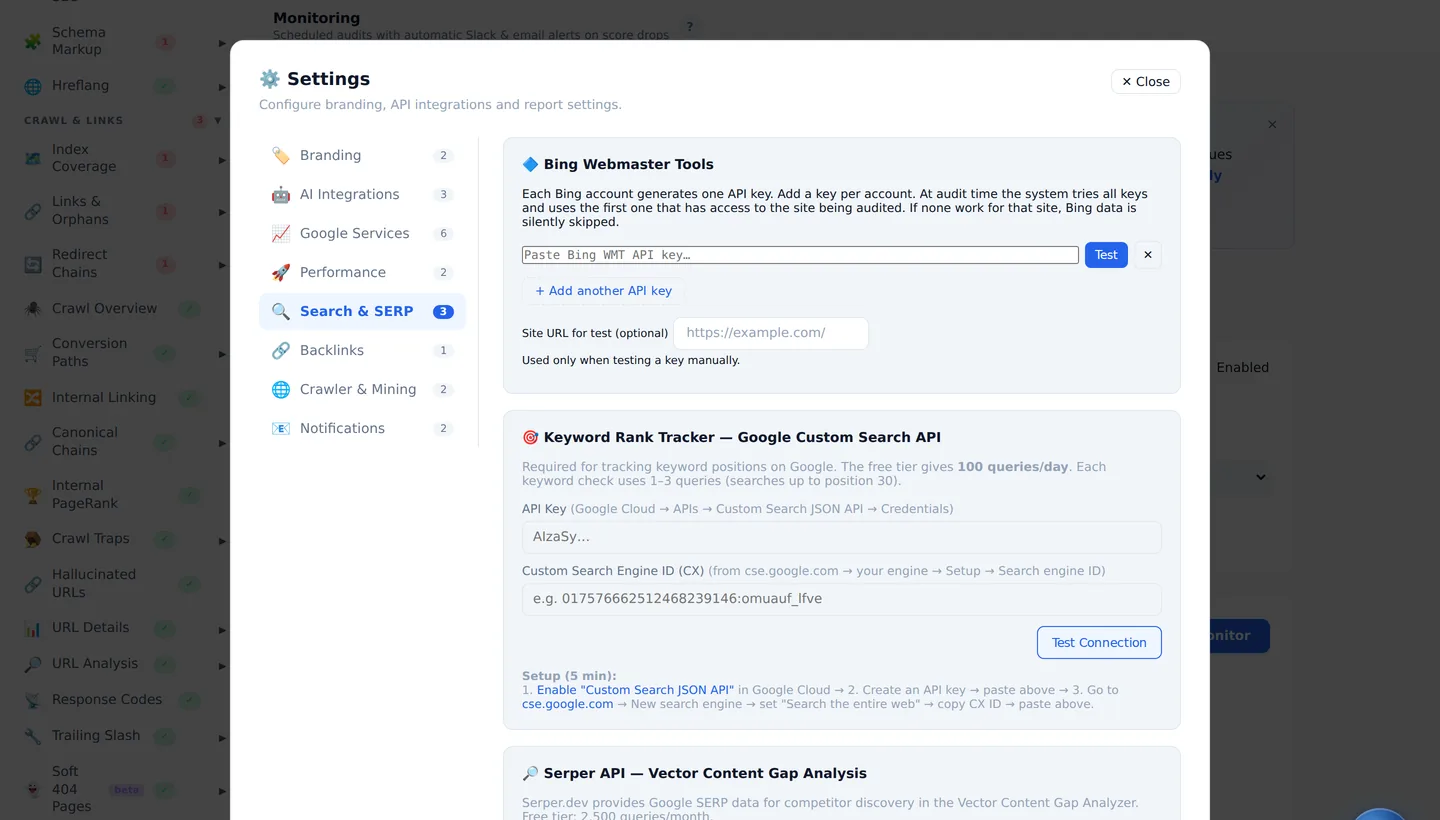
Daylytix Settings, Search and SERP tab with Bing Webmaster Tools, Google Custom Search and Serper
Search & SERP. Optional extras: Bing Webmaster Tools, Google Custom Search for lightweight rank checks, and Serper for live SERP lookups. Each field states what it costs.
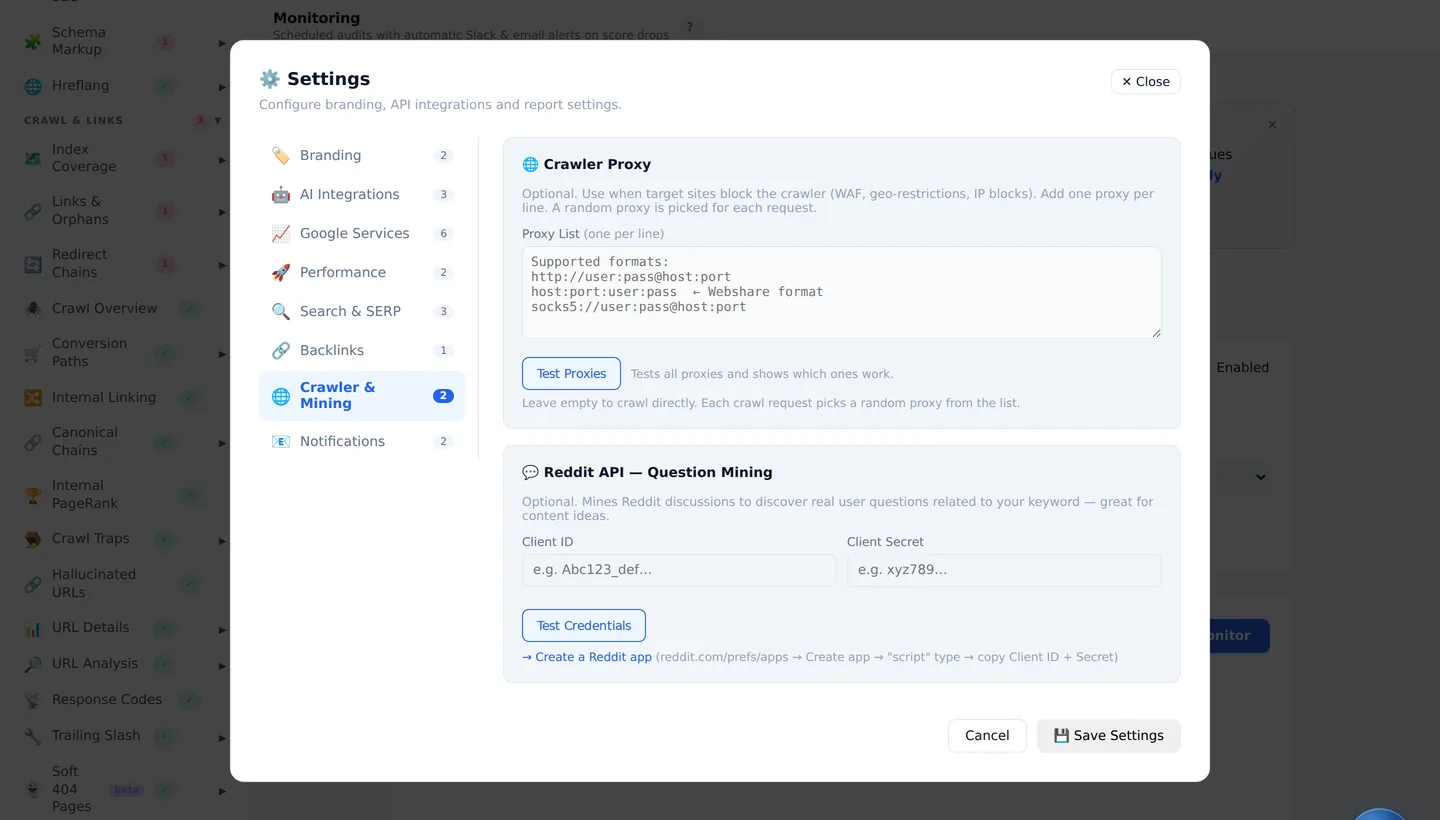
Daylytix Settings, Crawler and Mining tab
Crawler & Mining. How the crawler behaves — useful when a site is slow, rate-limits robots, or needs a particular user agent to answer.
Step 3

Running an audit

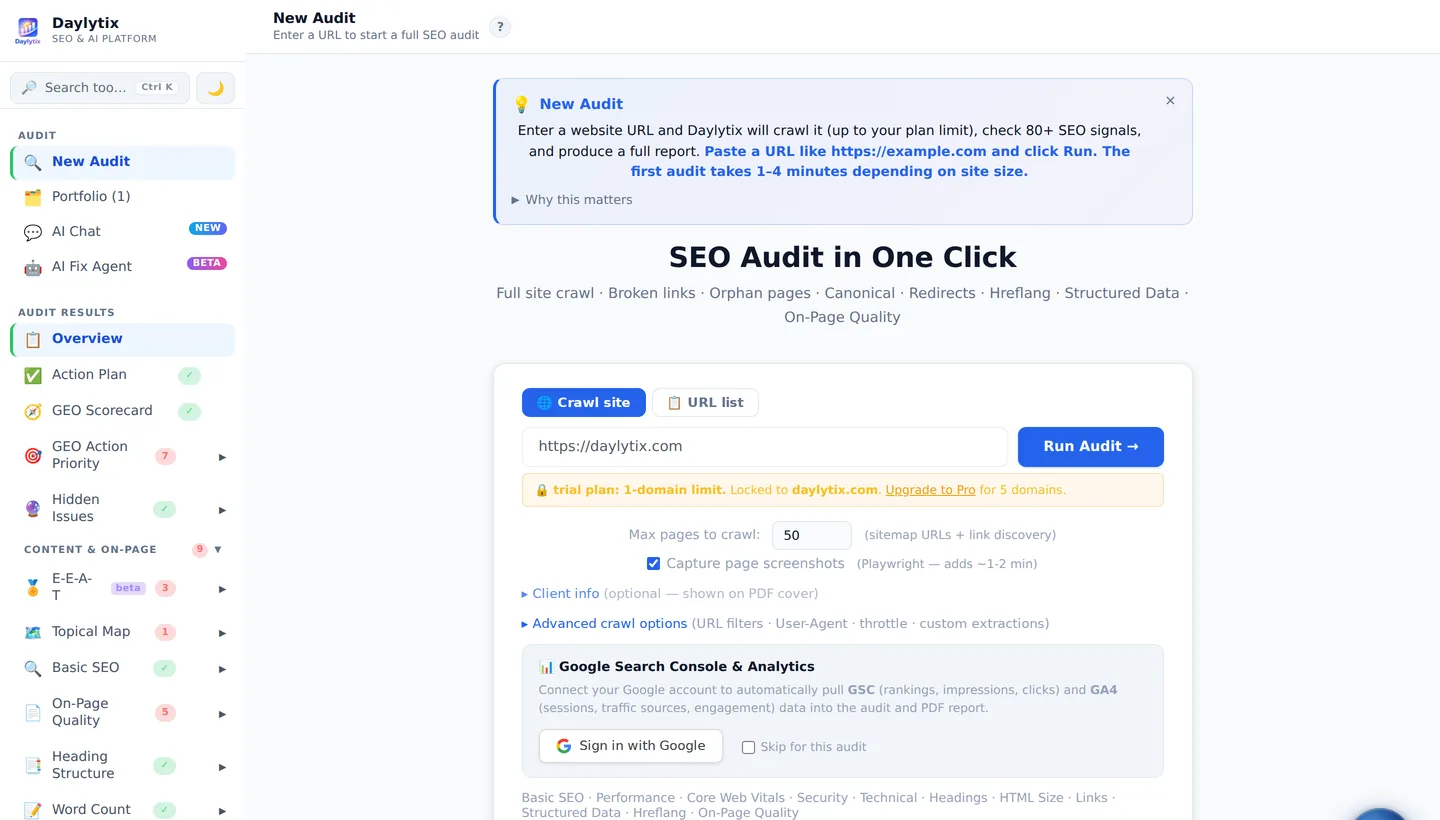
The Daylytix New Audit screen with URL field, page limit, screenshot toggle and Google sign-in
Every option on this screen, explained below.
  • Crawl site or URL list. Crawl follows links and your sitemap from the address you give. URL list audits exactly the addresses you paste — useful for a migration check or a specific set of templates.
  • The URL itself. Use the version that actually serves pages. If the site redirects to www, enter the www form, otherwise the first request is spent on a redirect.
  • Max pages to crawl. Pages come from your sitemap plus link discovery. Start at 50–100 to see how the site is built; raise it once you know the shape.
  • Capture page screenshots. On by default, adds a minute or two. Worth it for client reports, worth turning off for a quick technical pass.
  • Client info. Optional name and notes that print on the PDF cover.
  • Advanced crawl options. URL include and exclude filters, a custom user agent, request throttling, and custom extractions if you need a specific element pulled from every page.
  • Google Search Console & Analytics. Connect here and the audit pulls your real data into the report as it runs. Skip it and the audit still completes.
One audit runs at a time per account. Start a second and it queues, showing its position rather than pretending to be stuck. You can leave the page — the run continues and waits for you in History.
Step 4

Reading the report

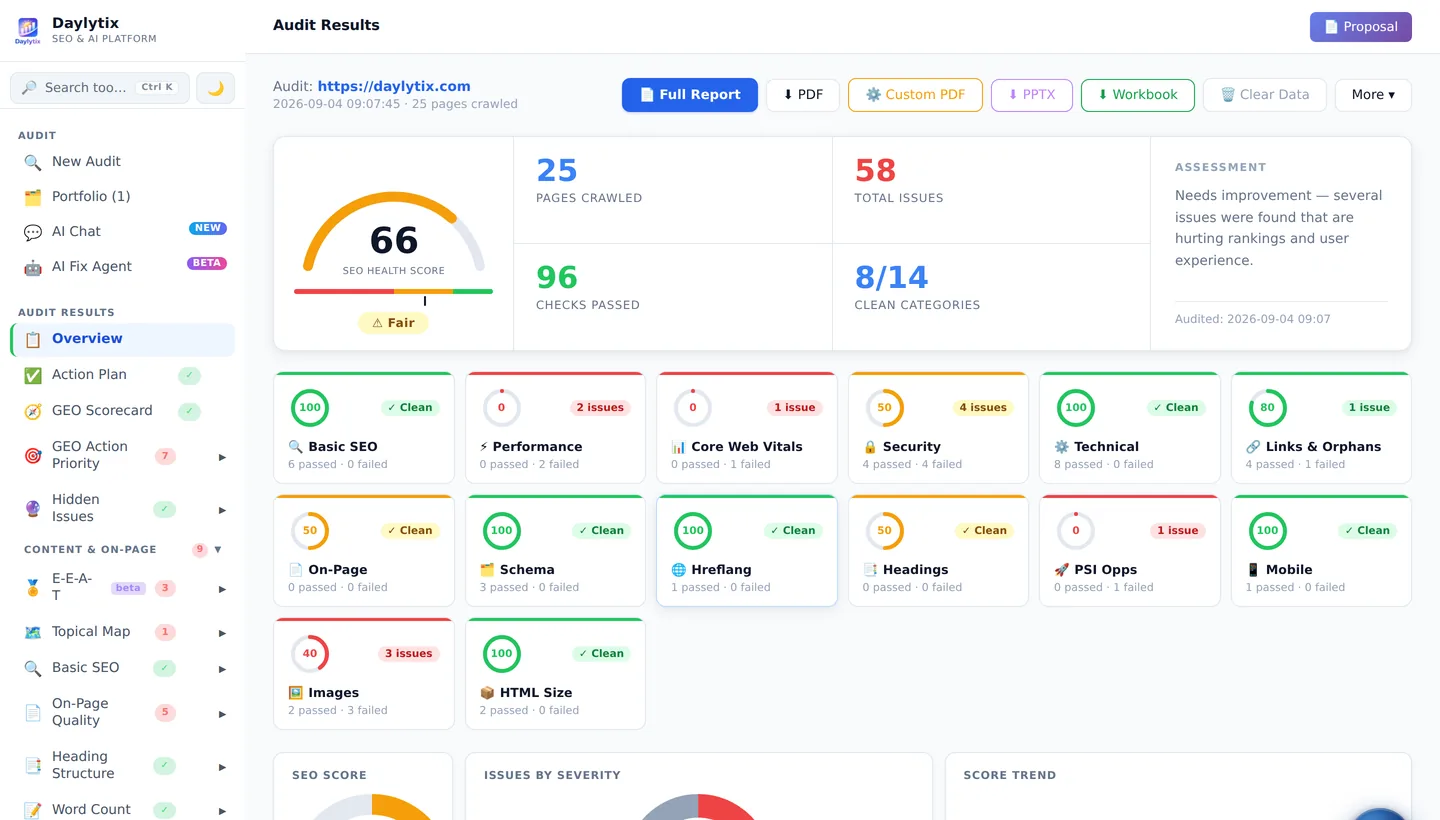
Daylytix audit results overview showing the score, issue counts and the grouped sidebar
The Overview. The sidebar on the left is the whole report, grouped; the badge beside each entry shows whether it found anything.

The score is a trend line, not a verdict. It exists so repeat audits of the same site can be compared. Two different sites with the same score usually have nothing in common, so do not read it as a grade.

The sidebar groups every section: Audit Results for the summary views, then Content & On-Page, Technical, Crawl & Links, Performance and Data Sources. A green tick means the check ran and found nothing wrong. A red number is how many issues it found.
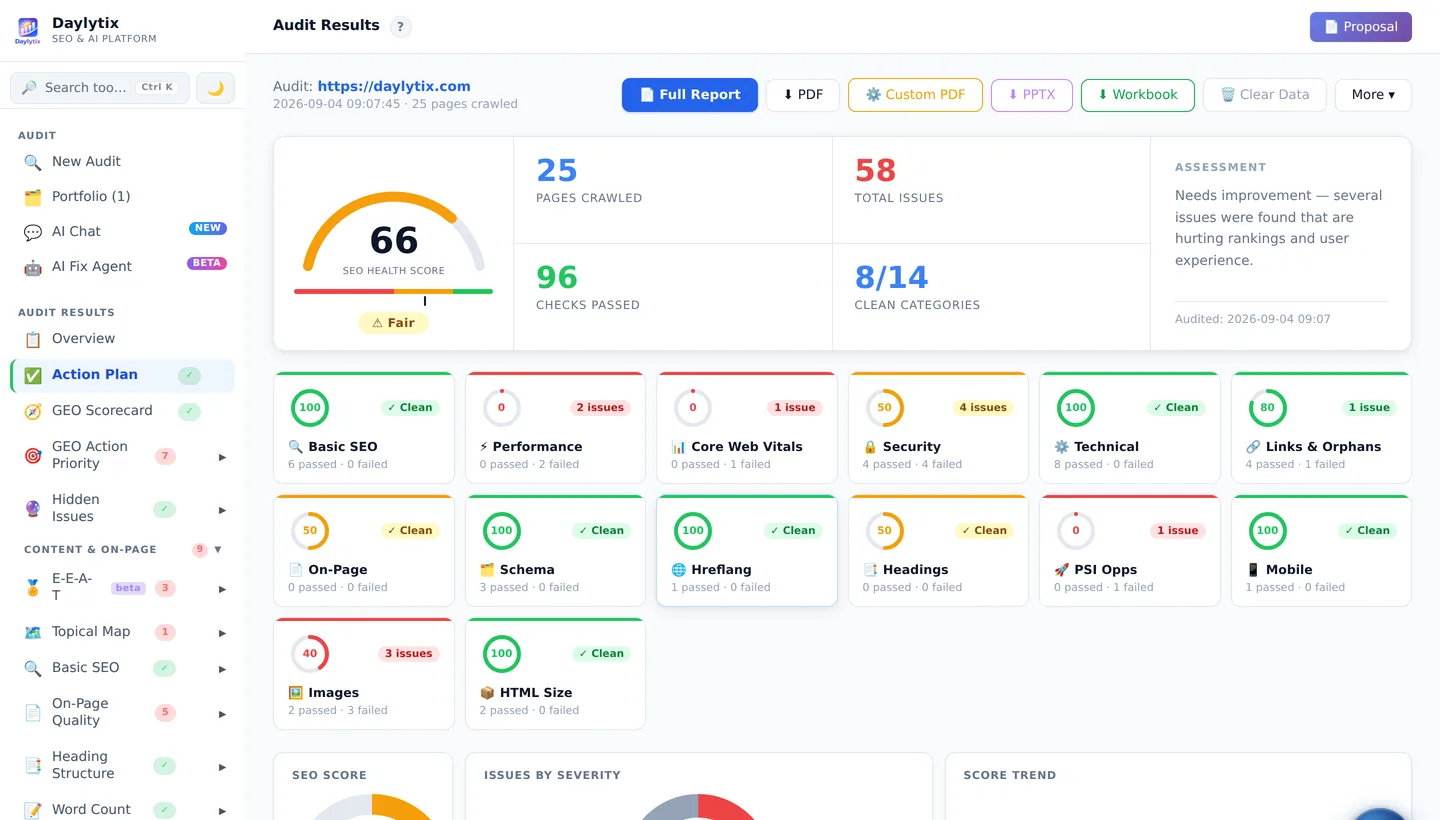
The Daylytix Action Plan, ordering findings by impact and effort
Action Plan. Start here rather than at the top of the list. It orders every finding by impact against effort, so you get a sequence to work through instead of four hundred separate observations.
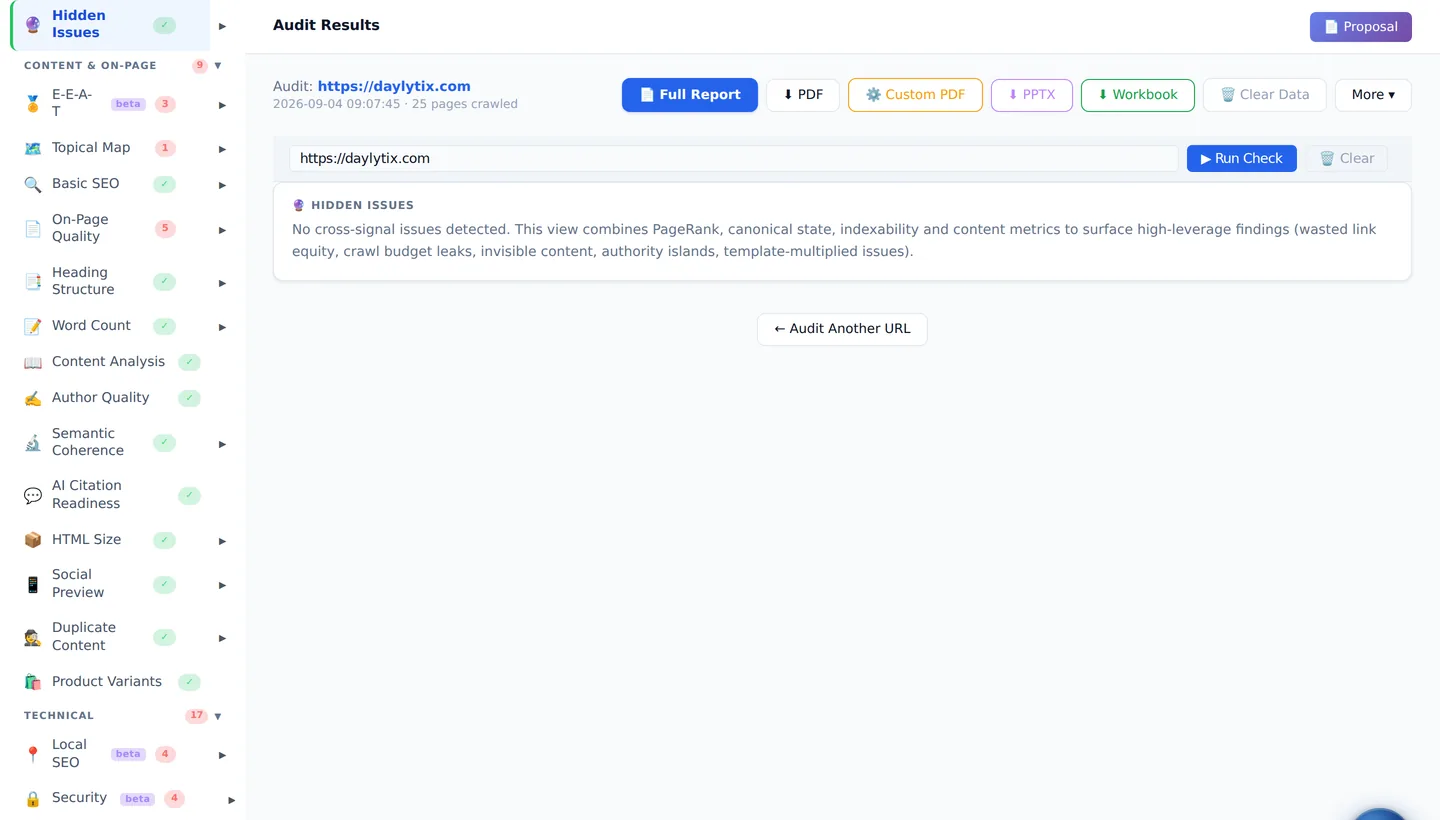
Daylytix Hidden Issues, cross-signal insights combining several checks
Hidden Issues. Findings that only appear when several checks are read together — link equity going to a canonicalised page, crawl budget spent on noindexed URLs, long pages nothing links to.
The Daylytix GEO Scorecard measuring readiness for AI search
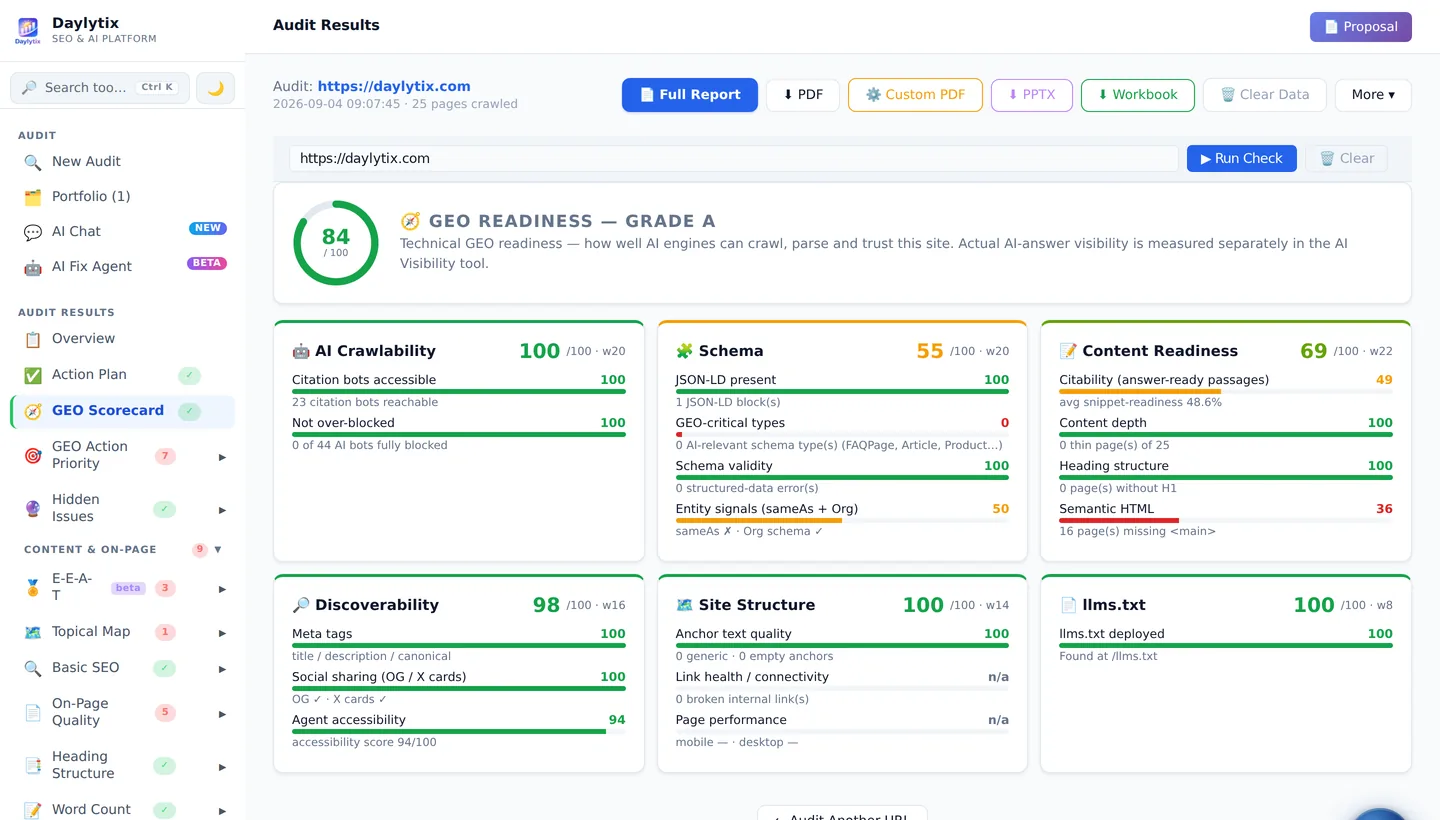
GEO Scorecard. How readable your site is to AI search: entity clarity, answer-shaped content, citation readiness, consistency between markup and copy. Not a promise of an AI Overview — nobody can offer that — but the things that demonstrably help a machine understand and quote you.
Group 1

Content & on-page

Daylytix Basic SEO section: title, meta description, H1, canonical and robots findings
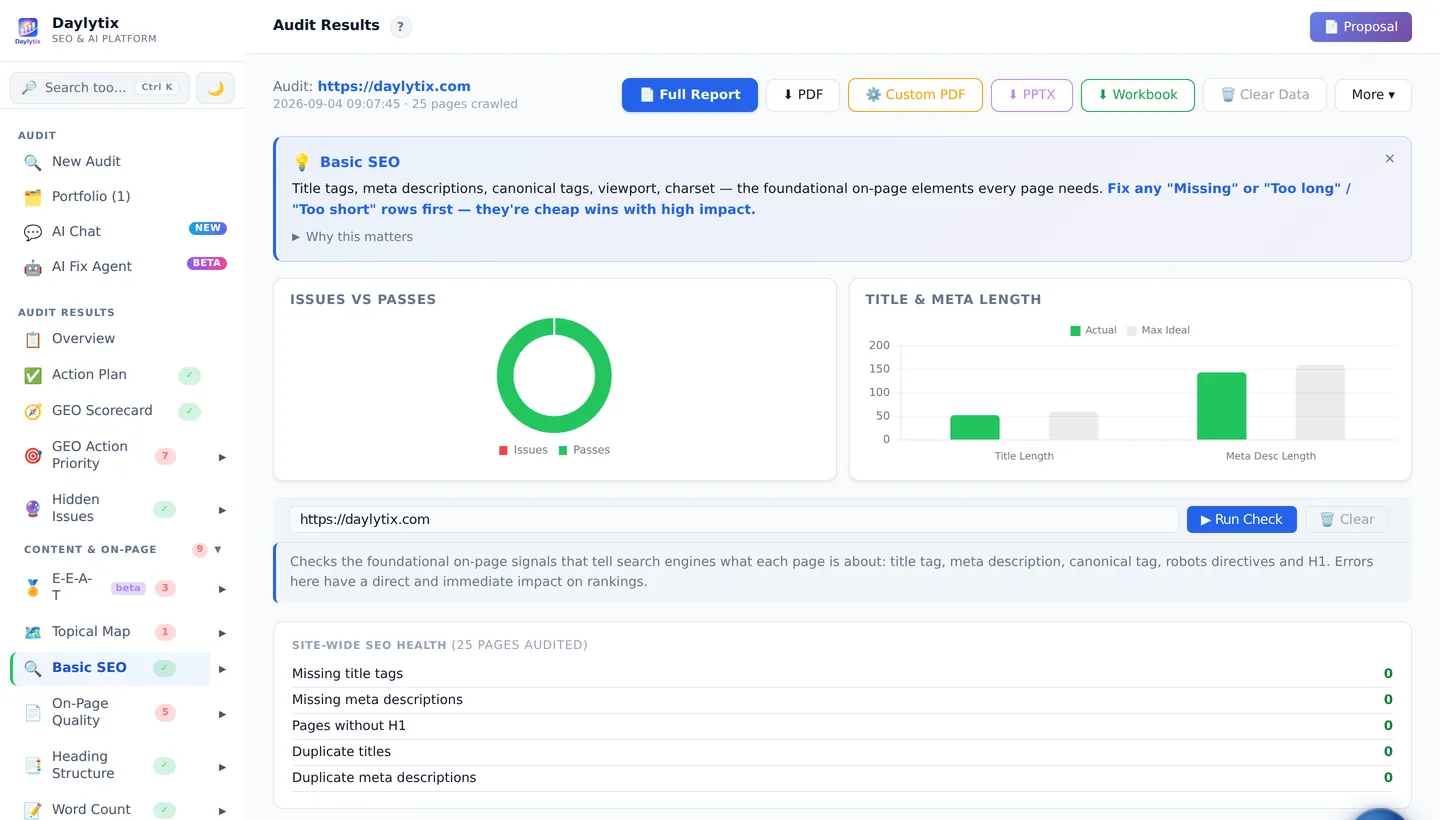
Basic SEO. The home page fundamentals: title length, meta description, H1, canonical, meta robots and robots.txt. If the site sits behind a firewall that blocks automated requests, this section says the page could not be read rather than reporting it as broken.
Daylytix On-Page Quality section listing pages with missing or duplicate titles and descriptions
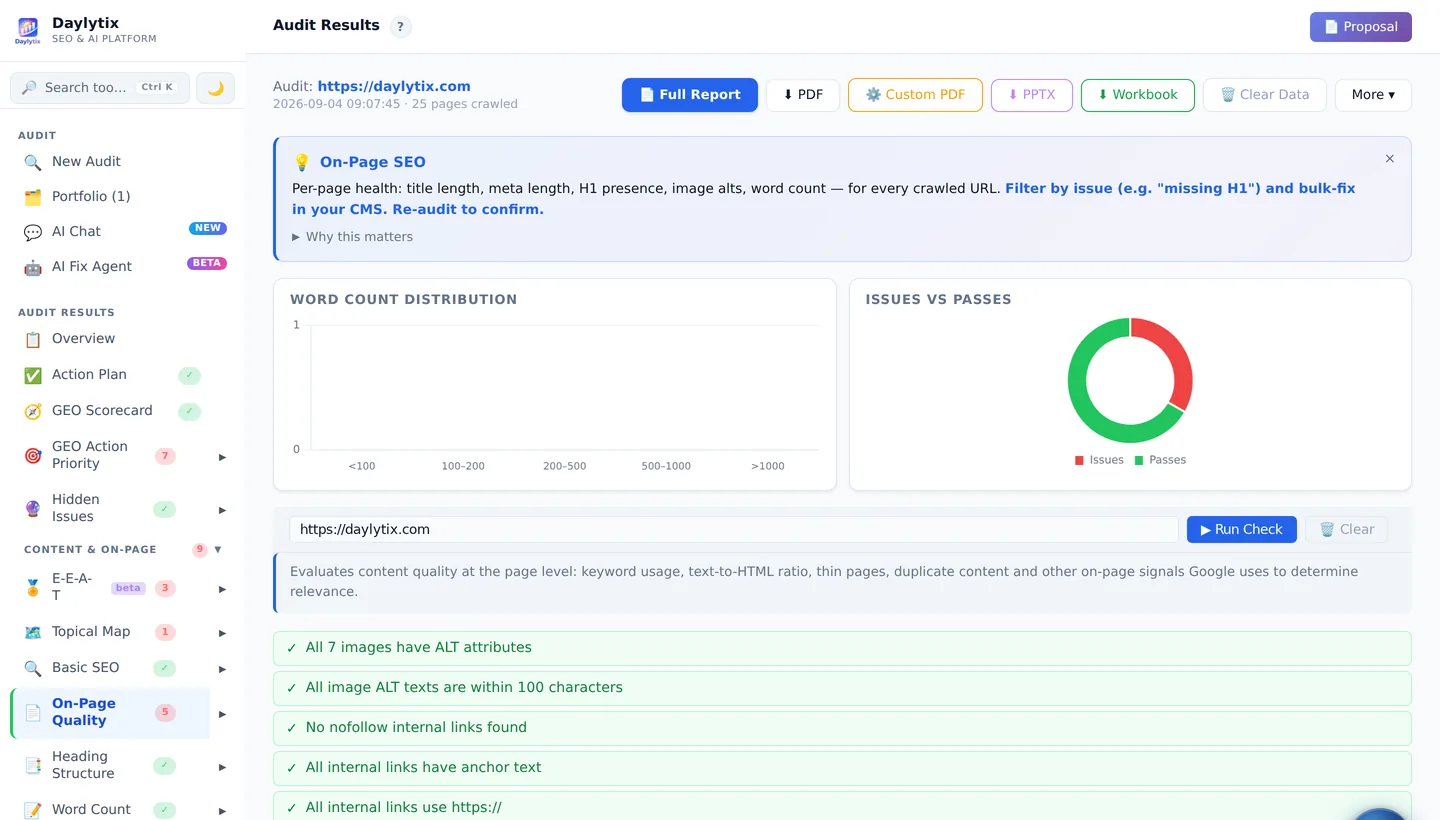
On-Page Quality. The same fundamentals across every crawled page — missing, duplicated, too long or too short. This is usually the largest single pile of quick wins on a neglected site.
Daylytix E-E-A-T section checking author, expertise and trust signals
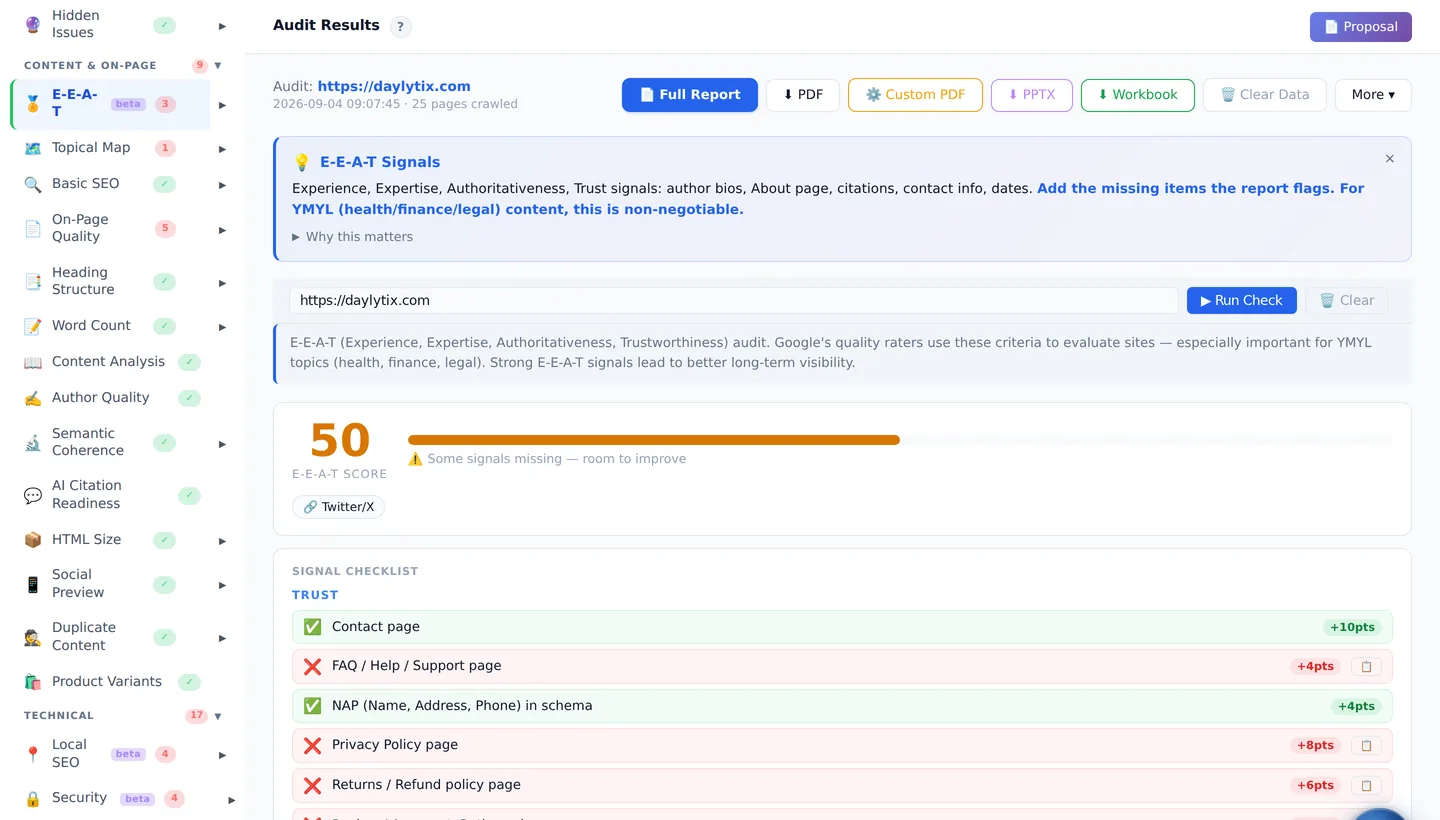
E-E-A-T. Whether the pages carry the signals a reader — or a model — uses to judge credibility: named authors, credentials, dates, sources, contact and policy pages.
Daylytix Topical Map showing keyword clusters and coverage gaps
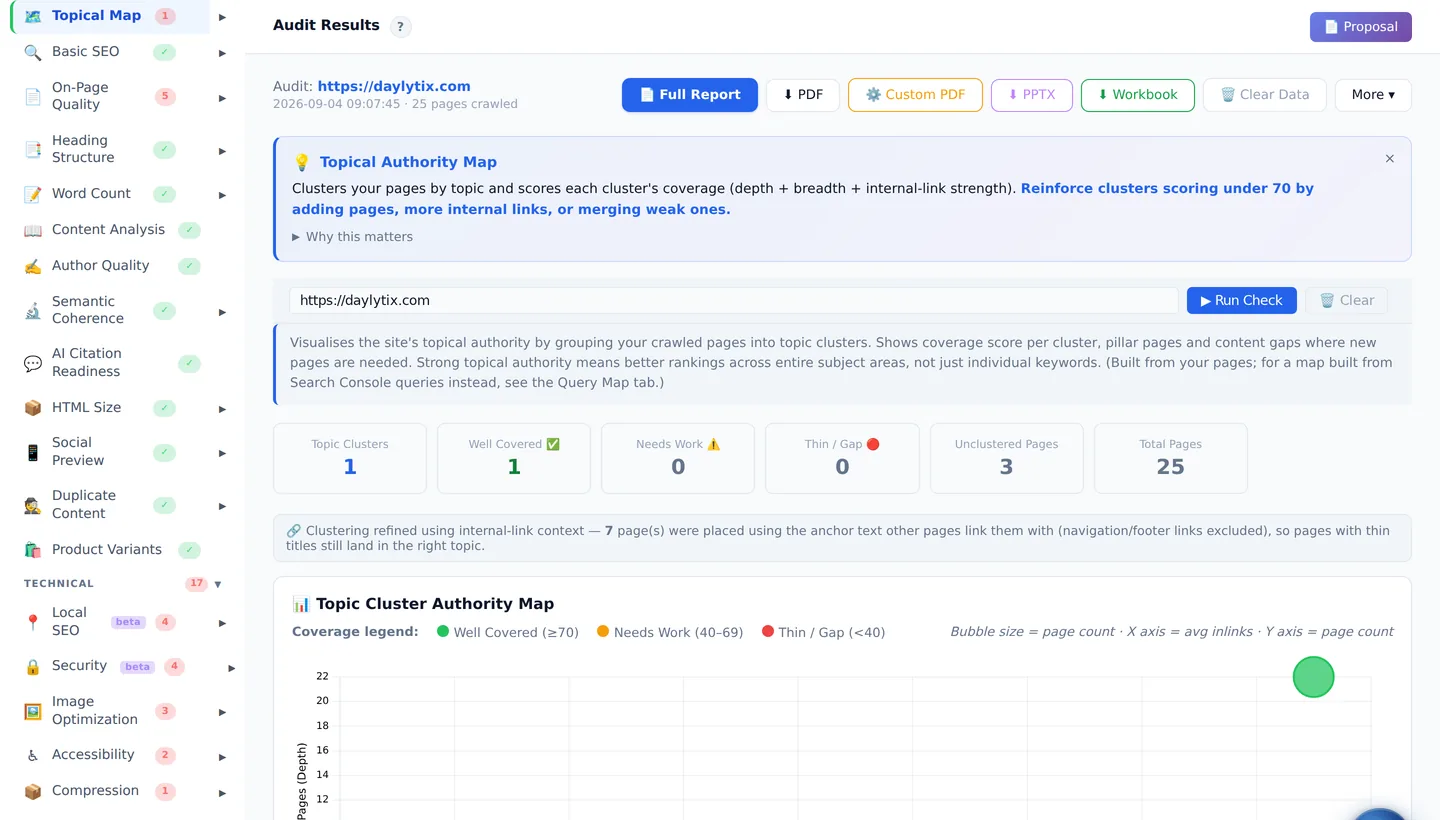
Topical Map. Groups your queries into topics and checks which are actually covered by a page. Gaps here are content briefs waiting to be written; it needs Search Console data to be meaningful.
Daylytix Content Decay showing pages losing clicks over time
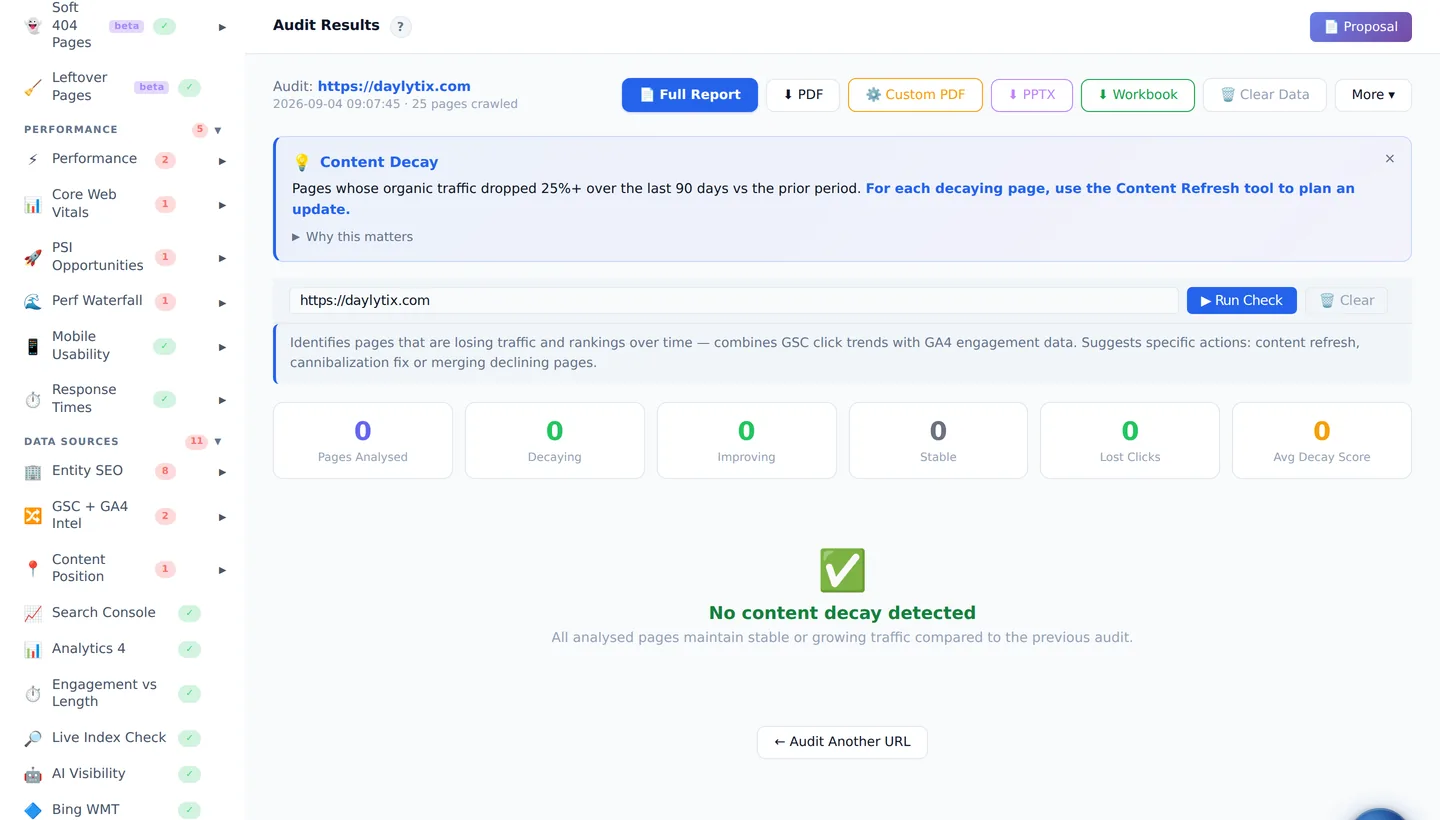
Content Decay. Pages quietly losing clicks compared with your earlier audits. It needs at least two audits of the same site with Search Console connected, so it fills in over time rather than on day one.
Group 2

Technical

Daylytix Schema Markup section validating structured data and recommending types per page
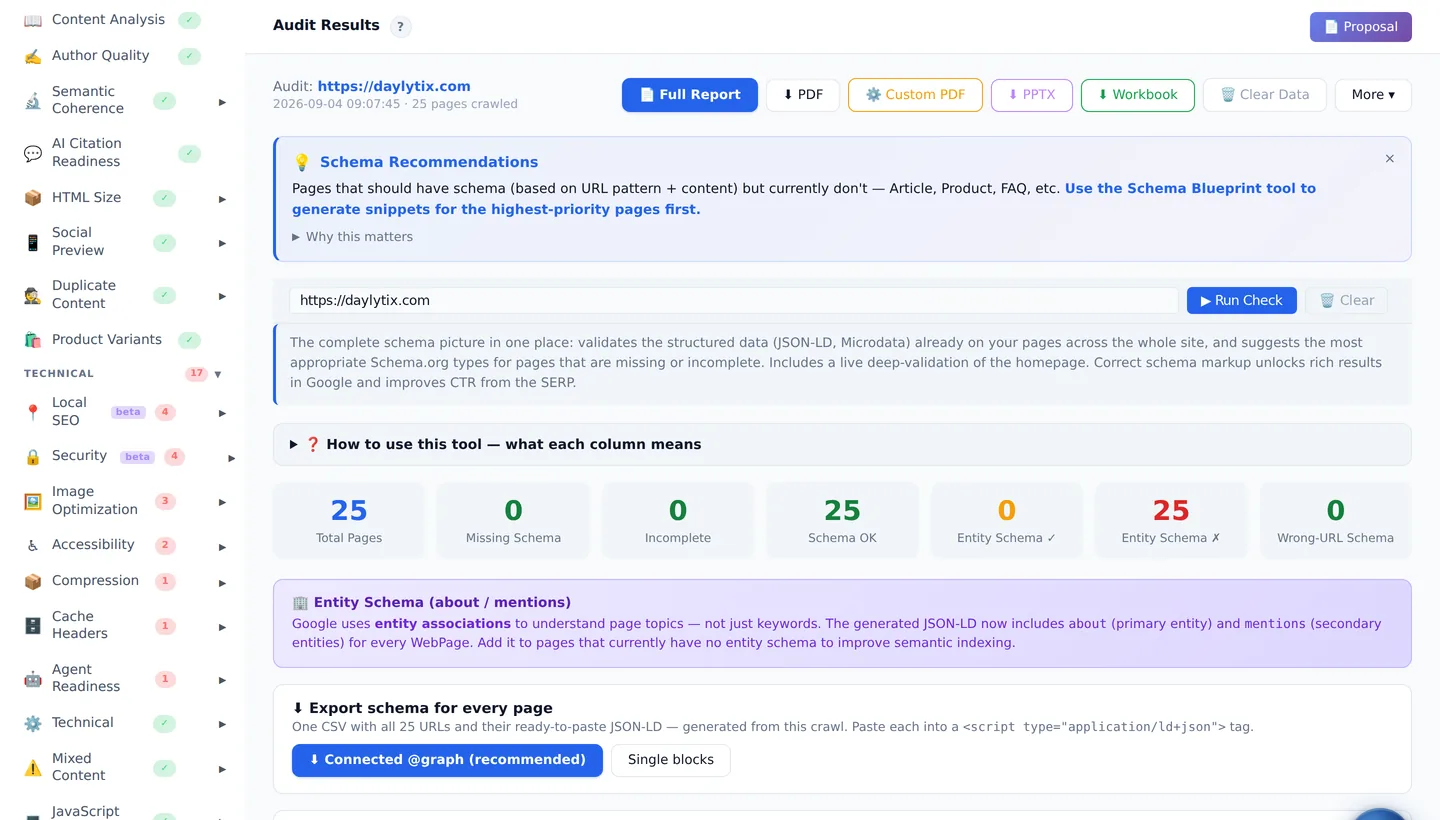
Schema Markup. Validates the structured data you have and recommends the right type per page. Since Google restricted FAQ and HowTo rich results in 2023, the value here is entity clarity and consistency between markup and content — not a snippet lottery.
Daylytix Accessibility section with score and sample failing pages
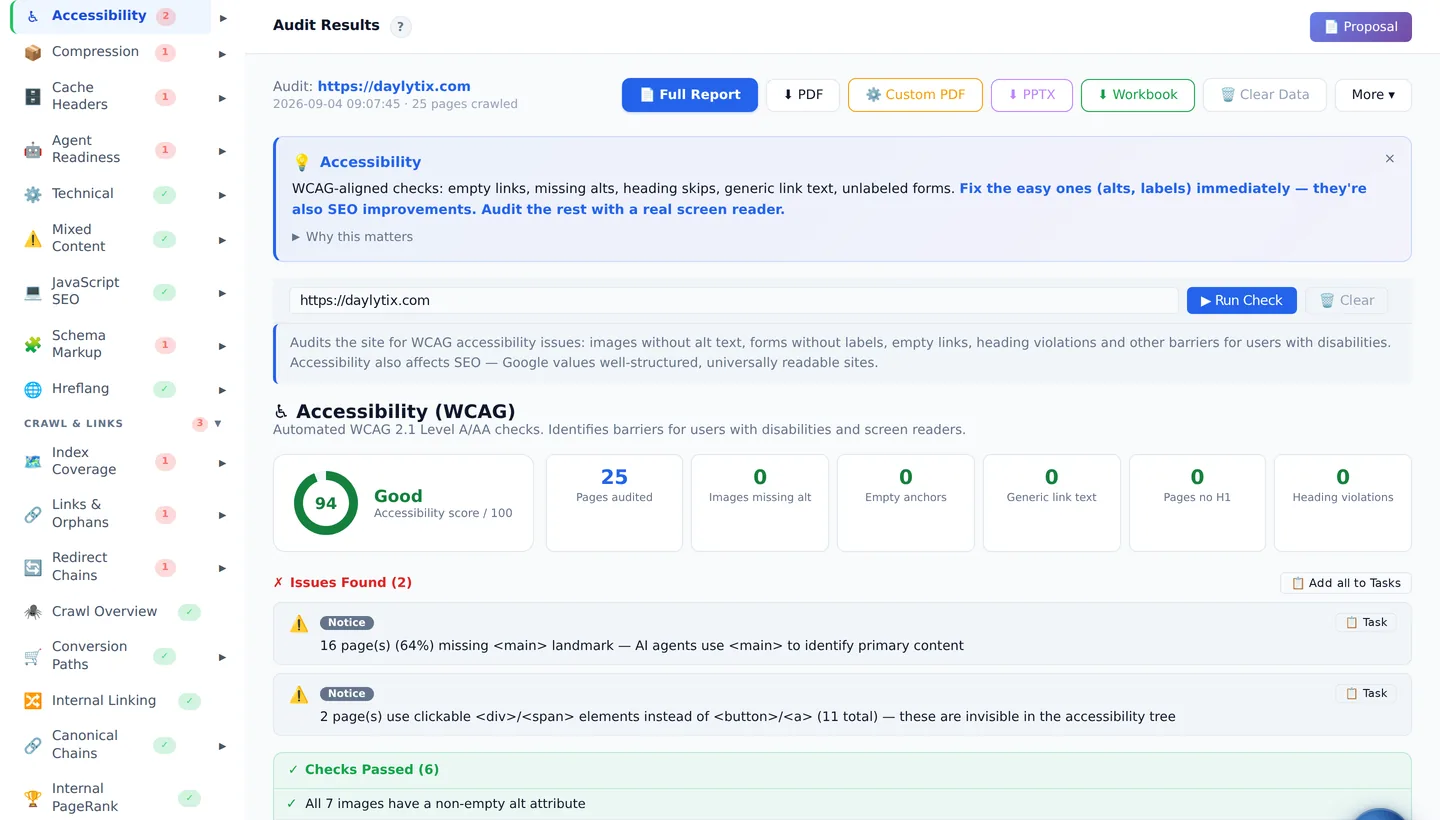
Accessibility. Images without alt text, empty or generic link text, missing and duplicated H1s, skipped heading levels, unlabelled form inputs. Each finding lists sample URLs so it is actionable rather than abstract.
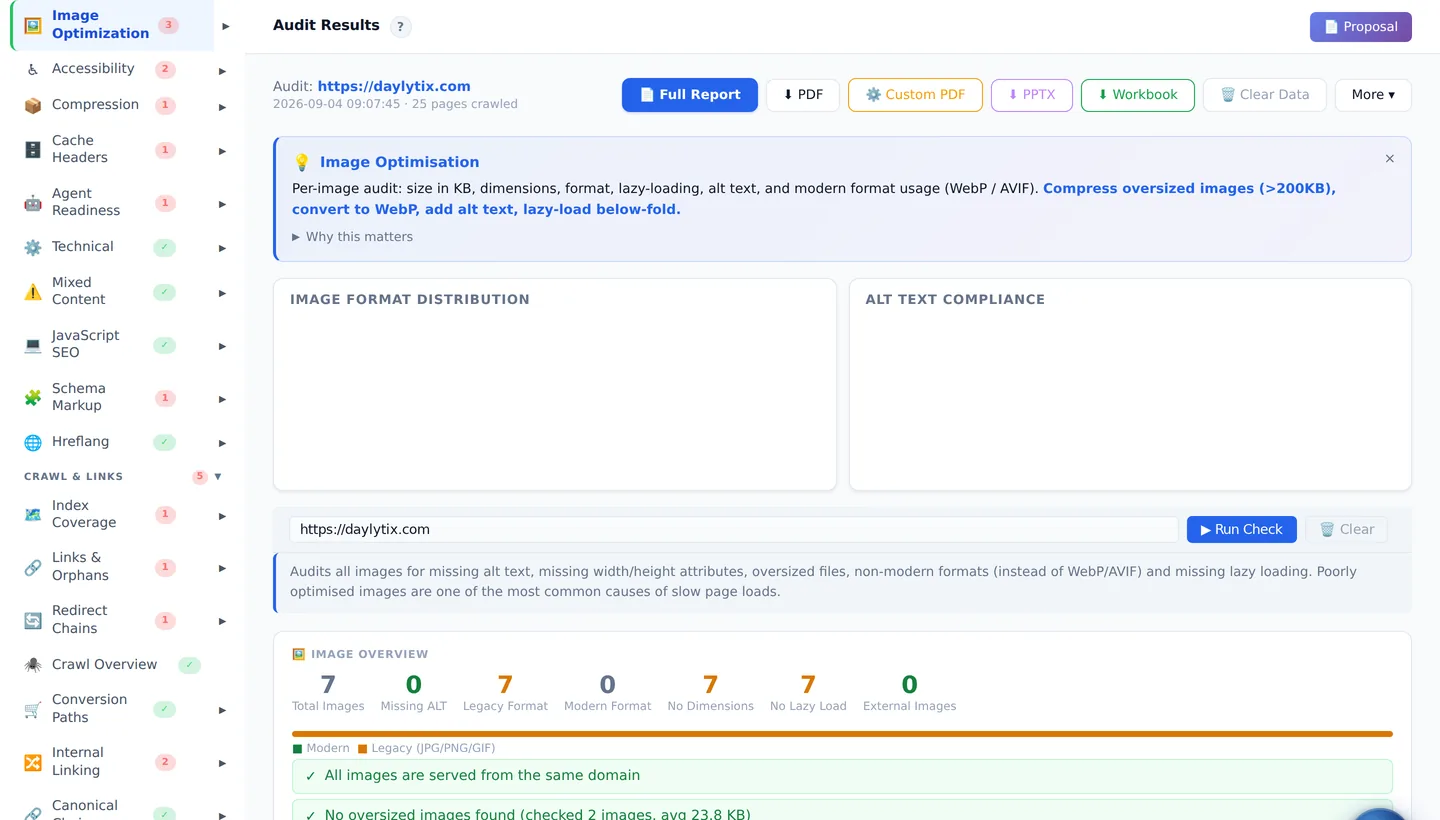
Daylytix Image Optimization section listing oversized and legacy-format images
Image Optimization. Legacy formats, missing width and height attributes, no lazy loading, and files heavy enough to hurt loading. The width and height point matters more than it sounds: without them the layout shifts as images arrive.
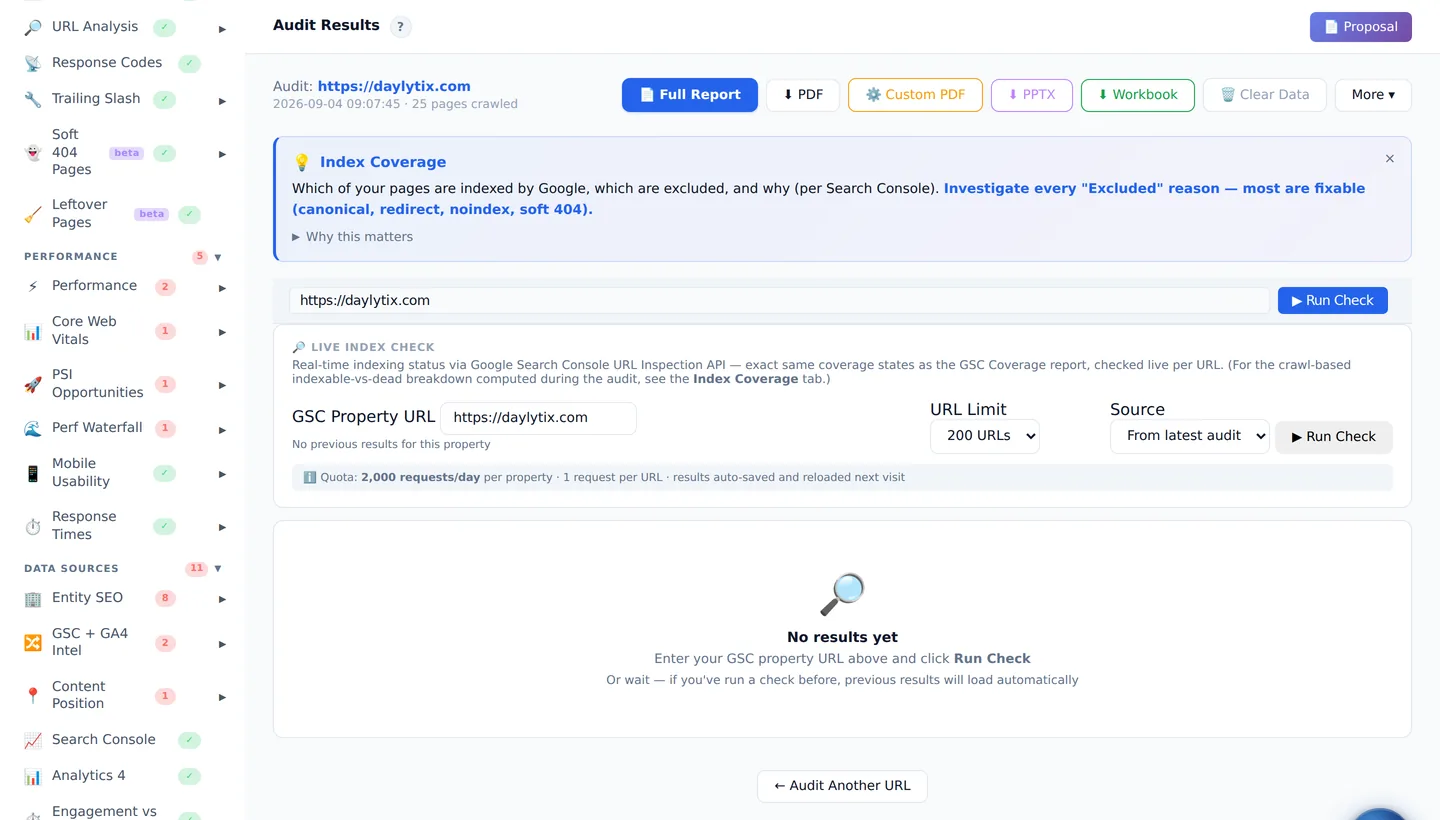
Daylytix Index Coverage section showing indexable and excluded pages
Index Coverage. Which pages can actually be indexed, and why the rest cannot — noindex, canonicalised elsewhere, redirected, or returning an error.
Group 3

Crawl & links

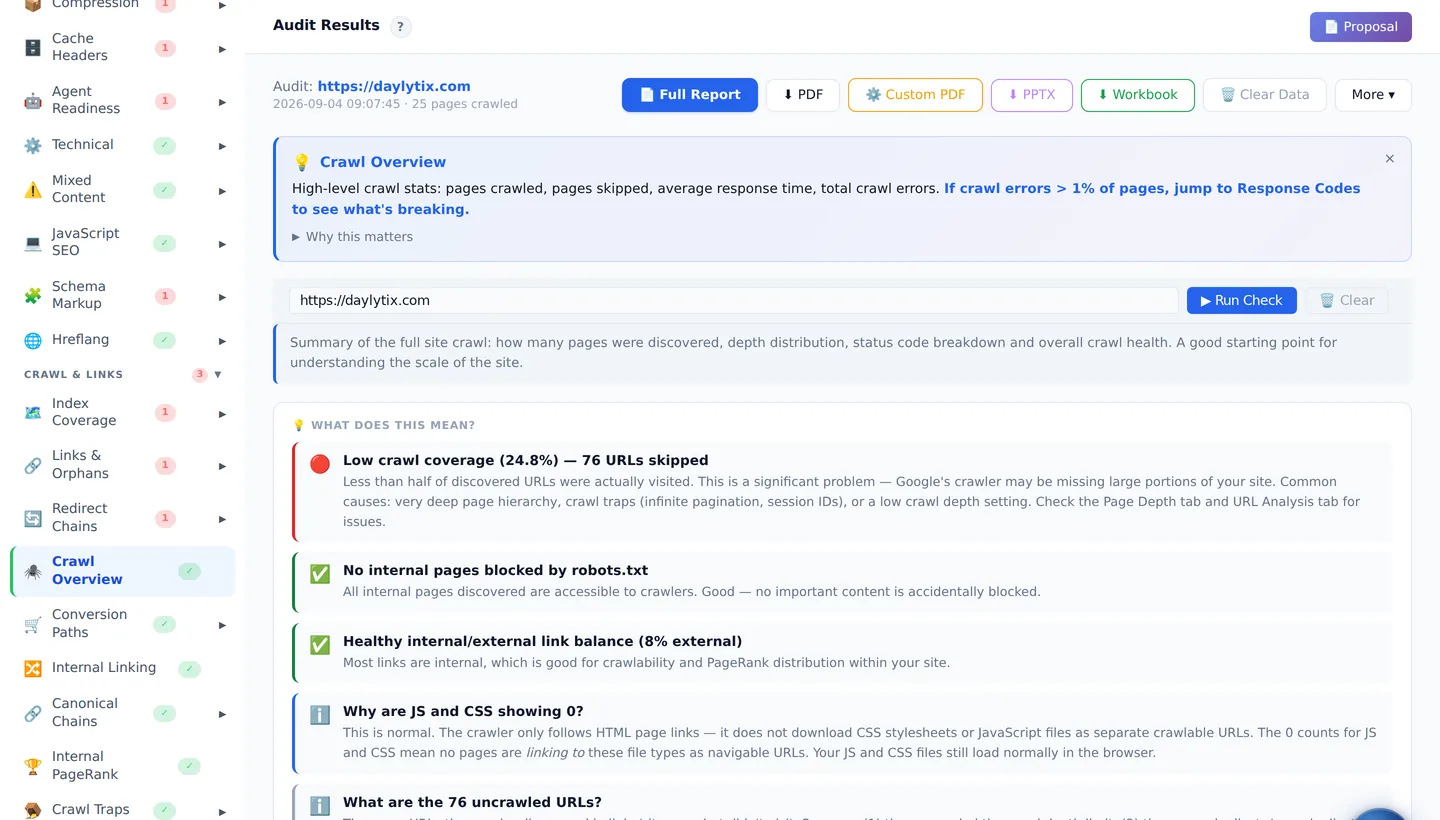
Daylytix Crawl Overview with response codes, depth distribution and crawl statistics
Crawl Overview. How many URLs were found against how many were crawled, response codes, depth distribution and response times. If the crawl covered far less than it discovered, read the rest of the report with that in mind.
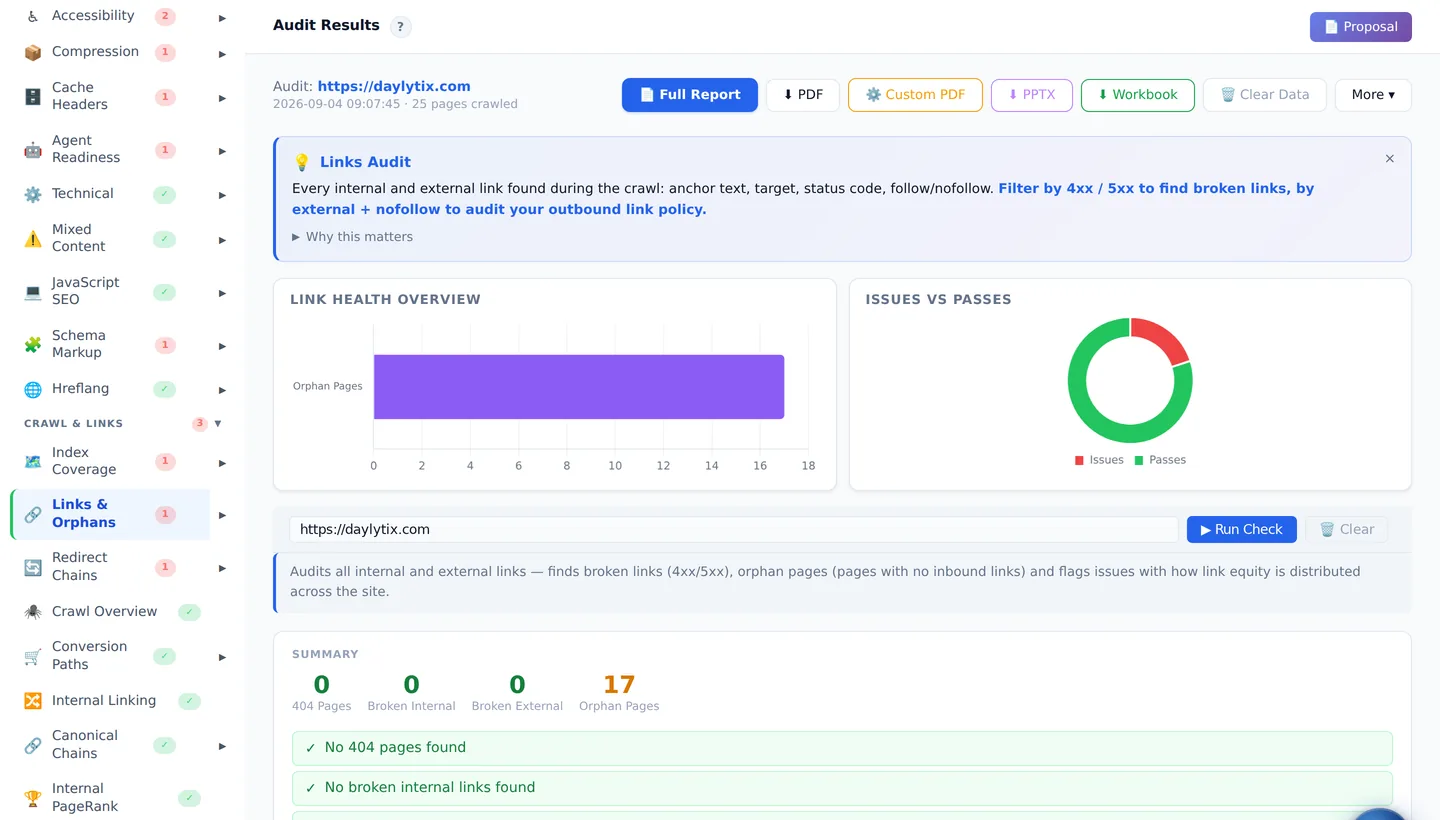
Daylytix Links and Orphans section listing broken links and unlinked pages
Links & Orphans. Broken internal and external links, pages returning 404, and pages nothing links to. Each broken link shows the page it was found on and its anchor text, so it can be fixed at source.
Daylytix Internal Linking suggestions with source pages, targets and anchor text
Internal Linking. Concrete suggestions: which page should link to which, and with what anchor. This is the practical answer whenever a page is described as under-linked.
Daylytix Redirect Chains section showing multi-hop redirects and loops
Redirect Chains. Multi-hop redirects and loops, with every hop listed. Chains waste crawl budget and lose a little authority at each step; loops simply break the page.
Group 4

Performance

Daylytix Performance section with mobile and desktop PageSpeed scores
Performance. Mobile and desktop PageSpeed scores with the opportunities behind them, from Google’s own API.
Daylytix Core Web Vitals gauges for LCP, INP and CLS
Core Web Vitals. LCP, INP and CLS, plus FCP and TTFB, for mobile and desktop. INP replaced FID as the responsiveness metric in March 2024, so that is what is scored here.
One thing to know. Core Web Vitals are measured for the home page, not for every crawled page — Google’s API is rate limited and running it across hundreds of URLs would take hours. Adding your own free PageSpeed key raises that limit.
Group 5

Search Console & Analytics

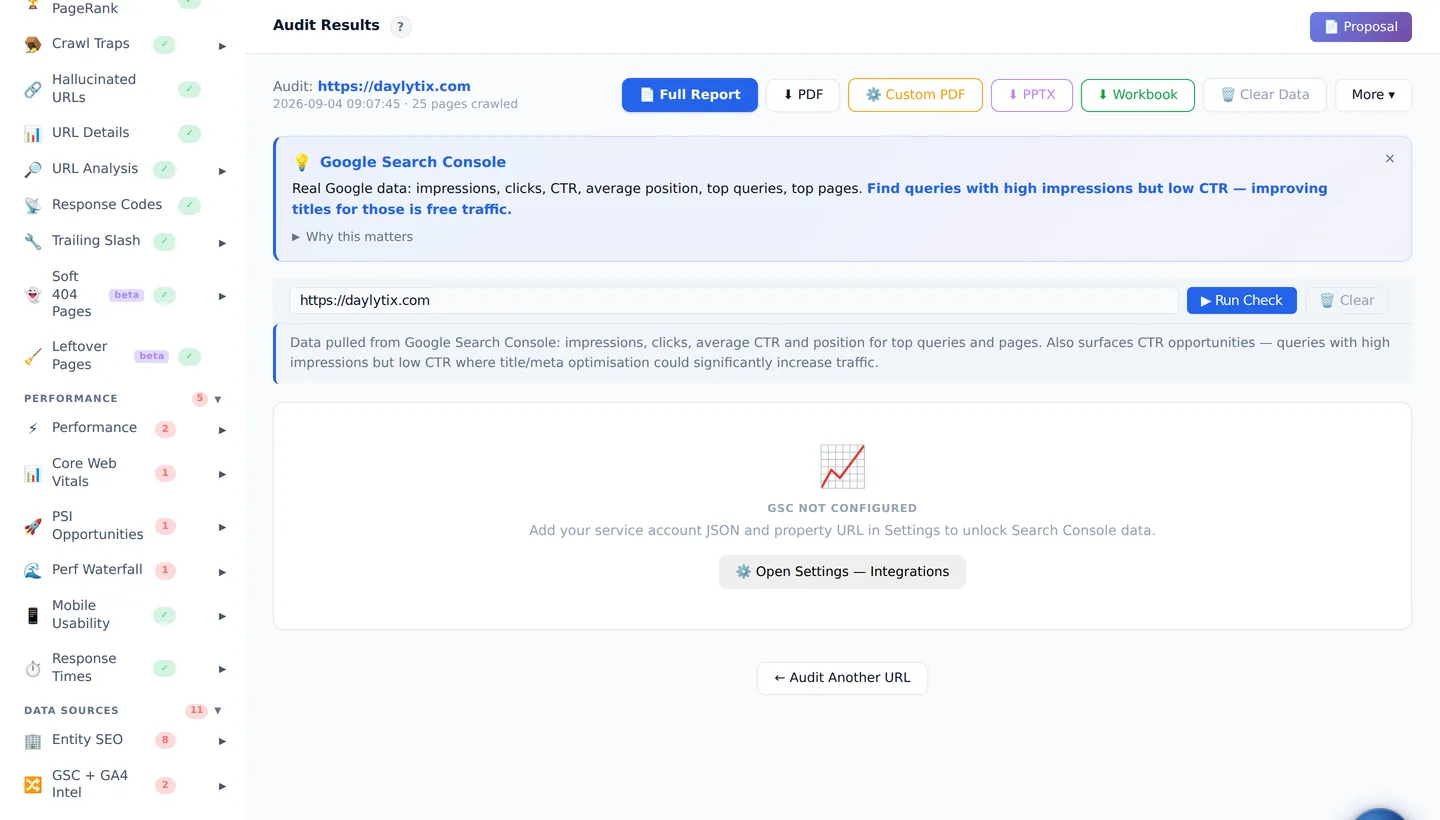
The Daylytix Search Console section before an account is connected
Before you connect Google, this is what the section looks like. Once connected it fills with your queries, clicks, impressions, CTR opportunities, query-title gaps and cannibalisation.

This group is where the audit stops describing the site and starts describing its audience. A page can be technically perfect and still earn nothing; only Search Console tells you whether anyone was looking.

The most useful views are CTR opportunities (pages ranking well that nobody clicks — usually a title problem), query-title gaps (searches you rank for that your title never mentions) and cannibalisation (several of your own pages competing for one query).

The workhorse

The per-URL table

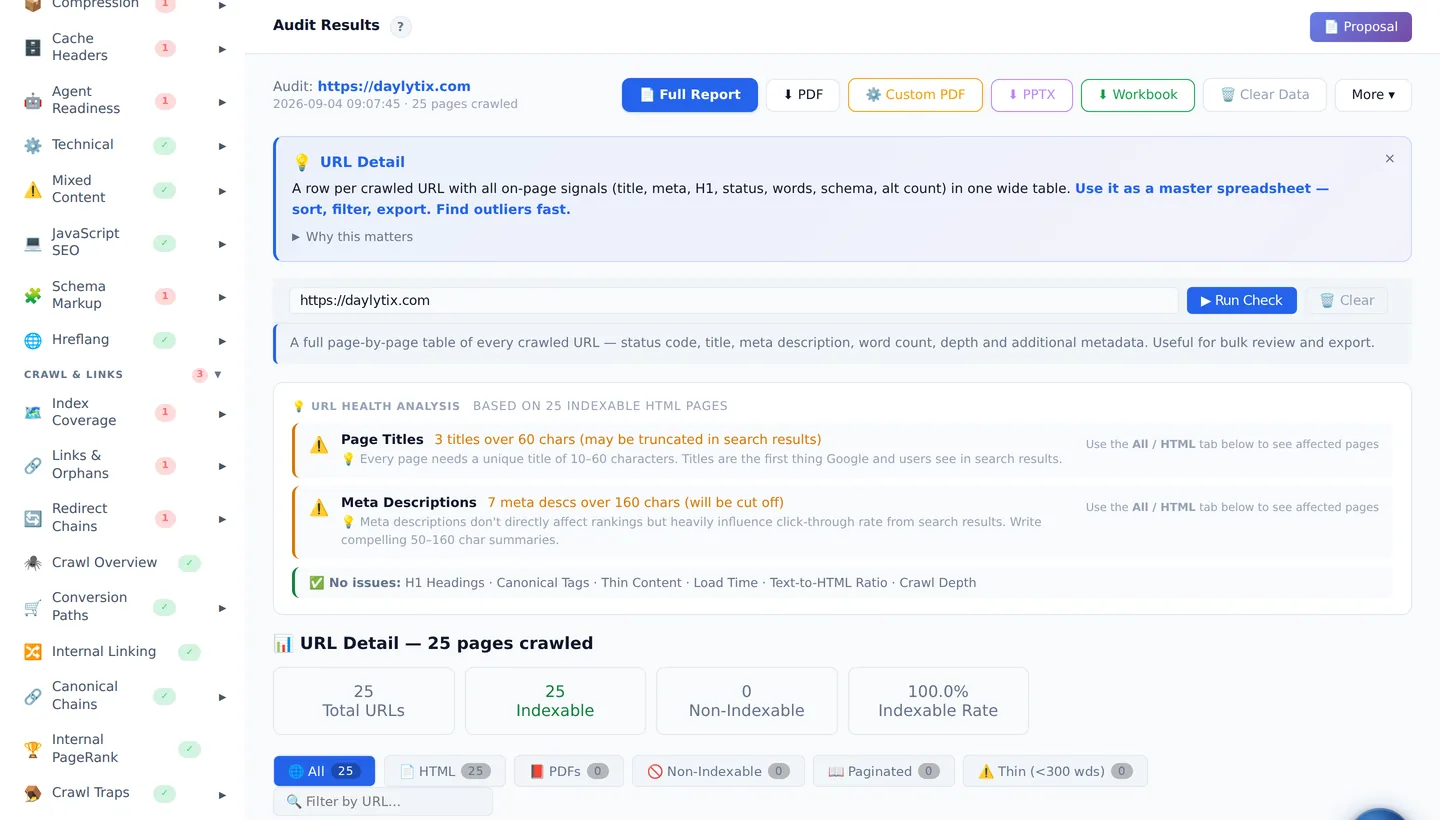
The Daylytix URL Detail table with status, indexability, title, meta description, word count and crawl depth per page
Every crawled page with its status, indexability, title, meta description, canonical, word count, internal links and crawl depth. Sortable, filterable, exportable.

Open this whenever a finding says “twelve pages have X” and you need to know which twelve. It is the same view a technical SEO would build by hand in a spreadsheet, already built.

Everything exports to CSV, so findings can move straight into a ticket tracker or a client’s own reporting.

Step 5

Beyond a single audit
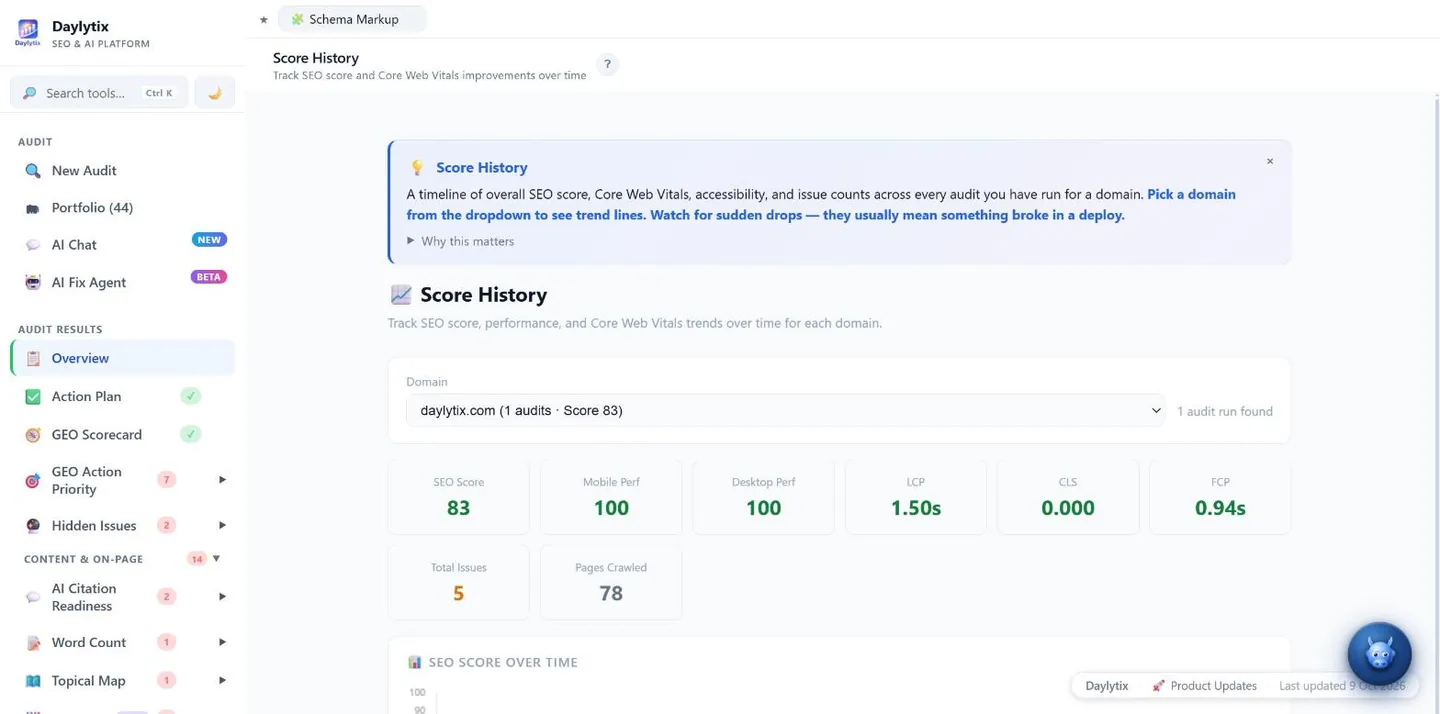
Daylytix audit history listing previous runs per domain
History. Every audit you have run, per domain. Nothing is thrown away, which is what makes the trend views possible.
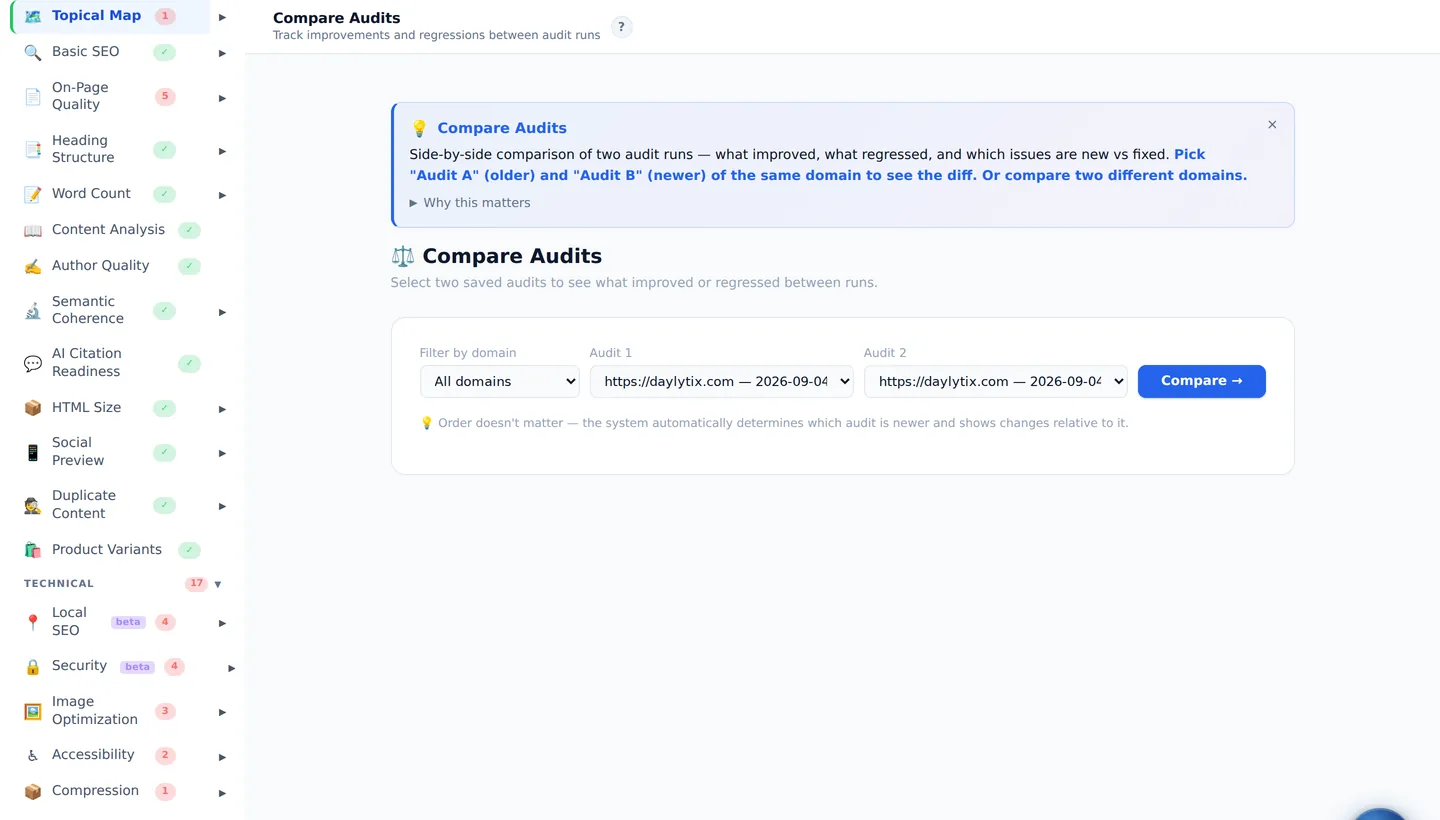
Daylytix Compare view showing what changed between two audits
Compare. Two audits side by side: what was fixed, what is new, what is still open, and which individual pages changed. This is how you show a client that the work landed.
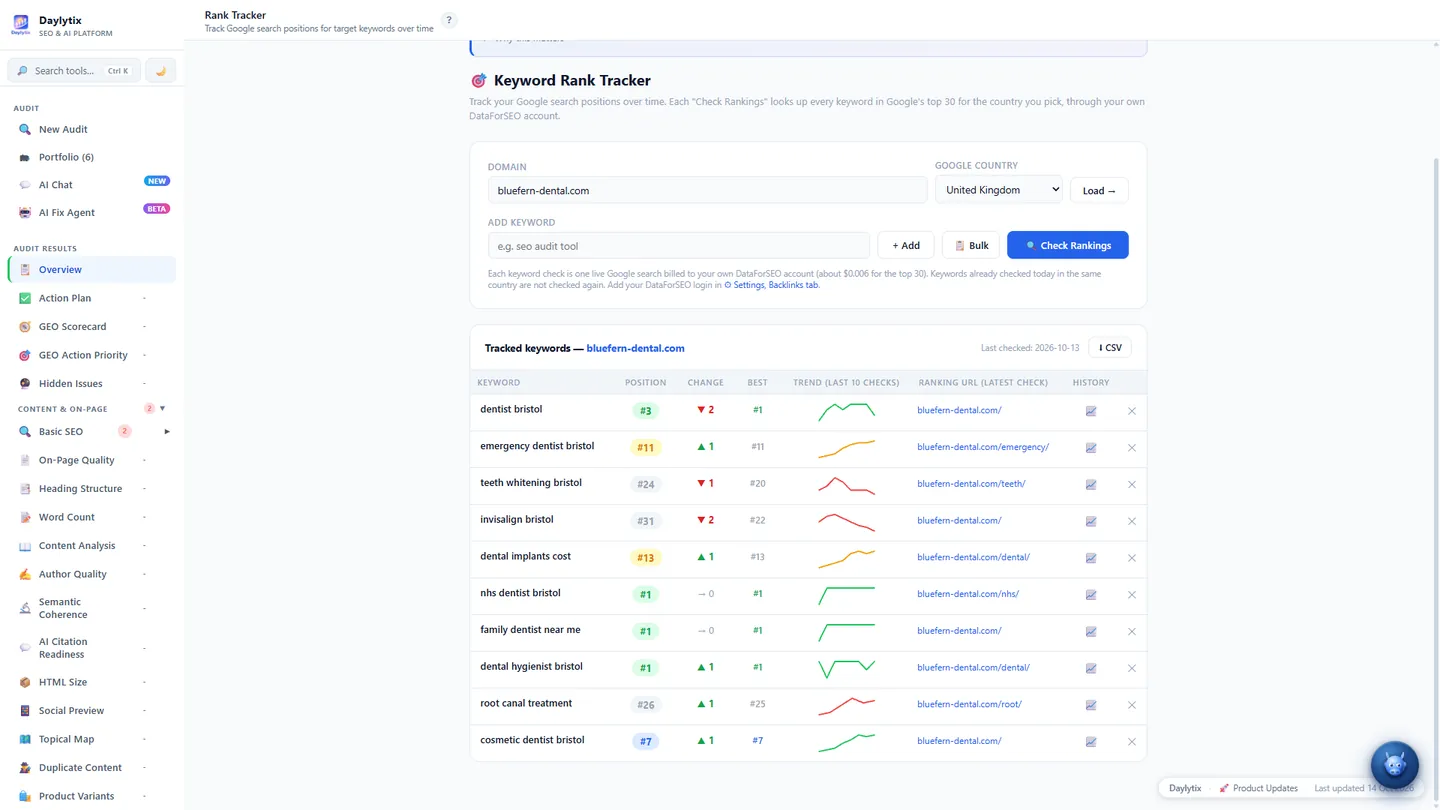
Daylytix Rank Tracker showing keyword positions and trends
Rank Tracker. Keyword positions from two sources side by side: Search Console’s averaged position, and — with DataForSEO connected — the true SERP rank, plus keywords you rank for that never appeared in Search Console at all.
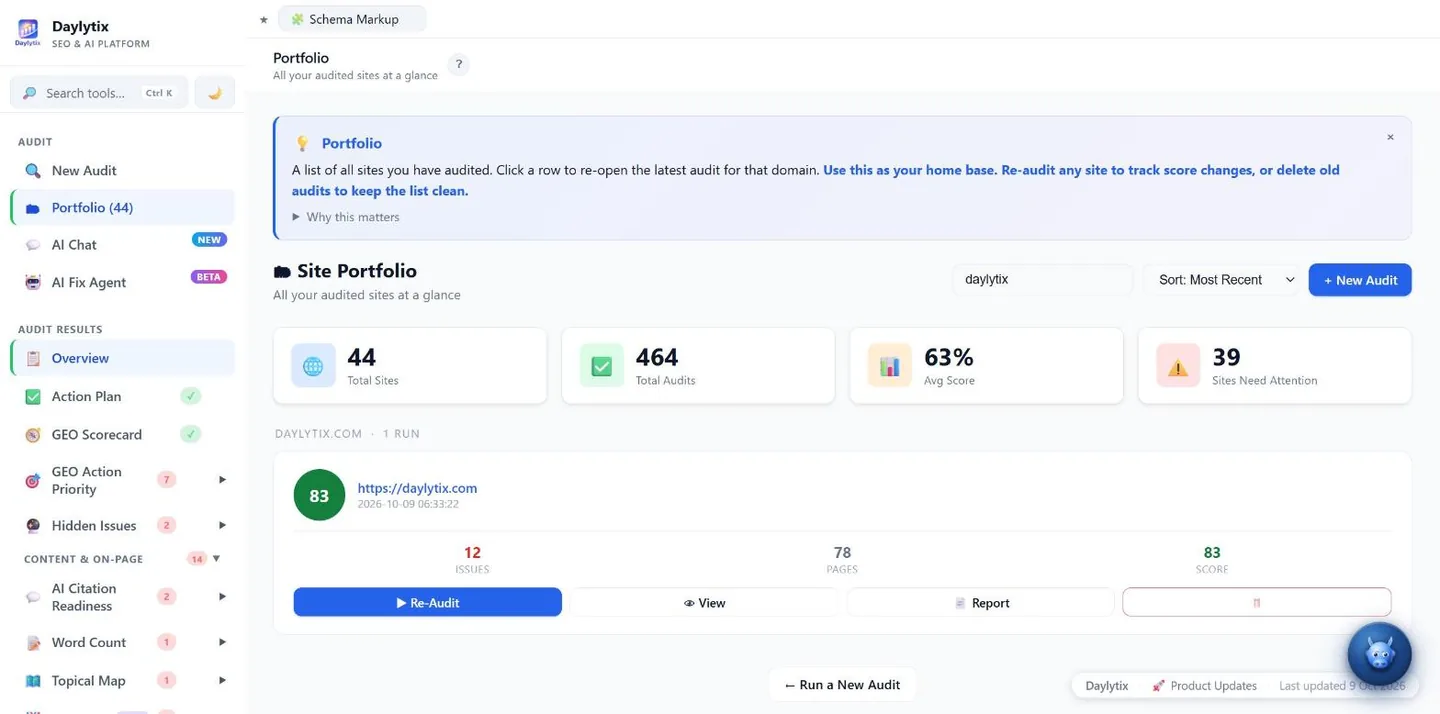
Daylytix Portfolio listing all tracked client sites
Portfolio. All your sites in one list with their latest score and run. On Pro and Agency this is where a multi-client workload stops being a folder of PDFs.
Daylytix AI Chat answering questions about the current audit
AI Chat. Ask questions about the audit in front of you and it answers from that audit’s data, running the tools it needs. Requires an AI provider key.
Step 6

Reports, and making it repeat

PDF report
The full audit as a document, English or Bulgarian, carrying your branding. Custom PDF lets you choose which sections go in.
PowerPoint deck
The same findings as slides with charts, for when the audit is presented rather than read. Pro and above.
Workbook export
The underlying tables in one spreadsheet, for teams that want to work the data themselves.
Client portal
A shareable link showing a client their report with no login, limited to the tabs you pick. Agency plan.
Proposal
Turns the findings into a scoped piece of work you can send — the audit as a sales document.
CSV per table
Almost every table exports on its own, which is usually what a developer actually wants.
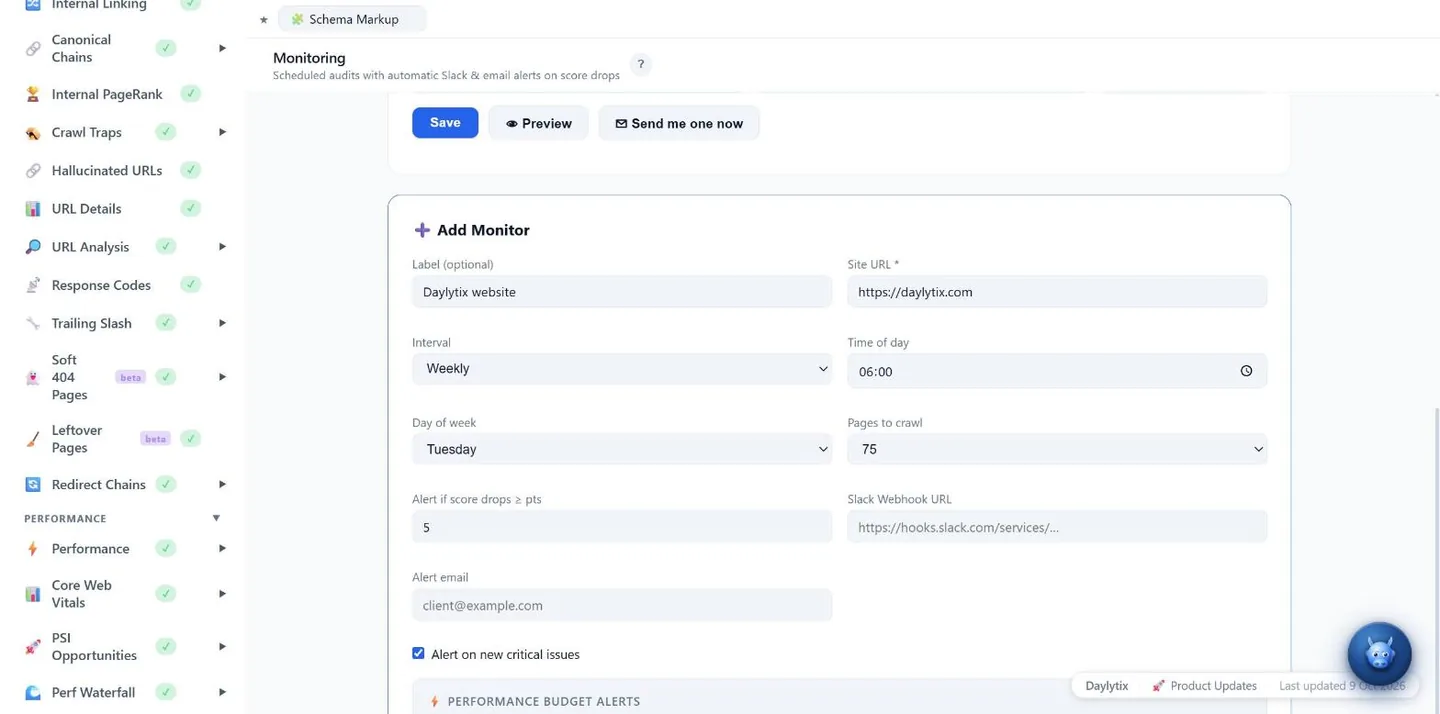
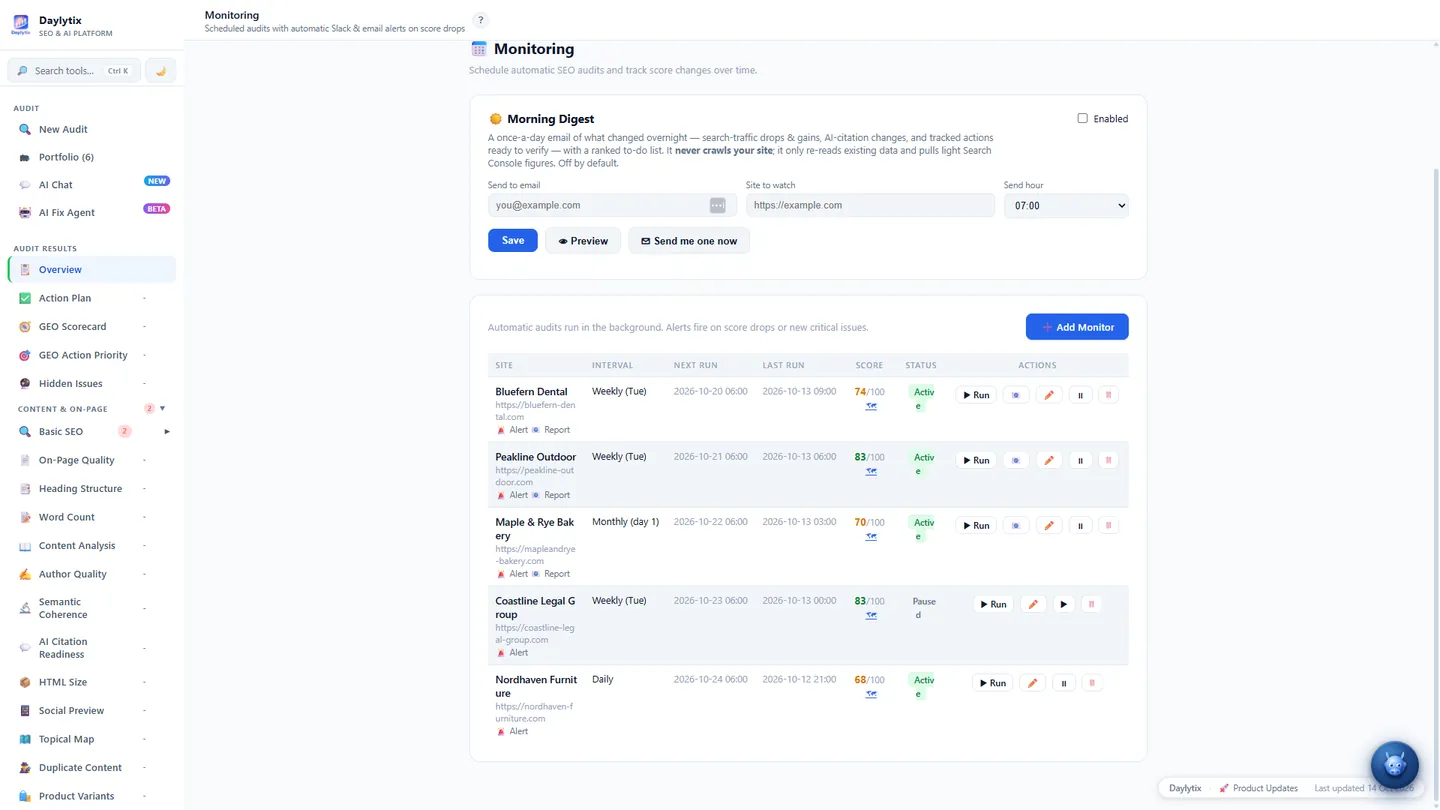
Daylytix scheduled monitoring with recurring audits and performance thresholds
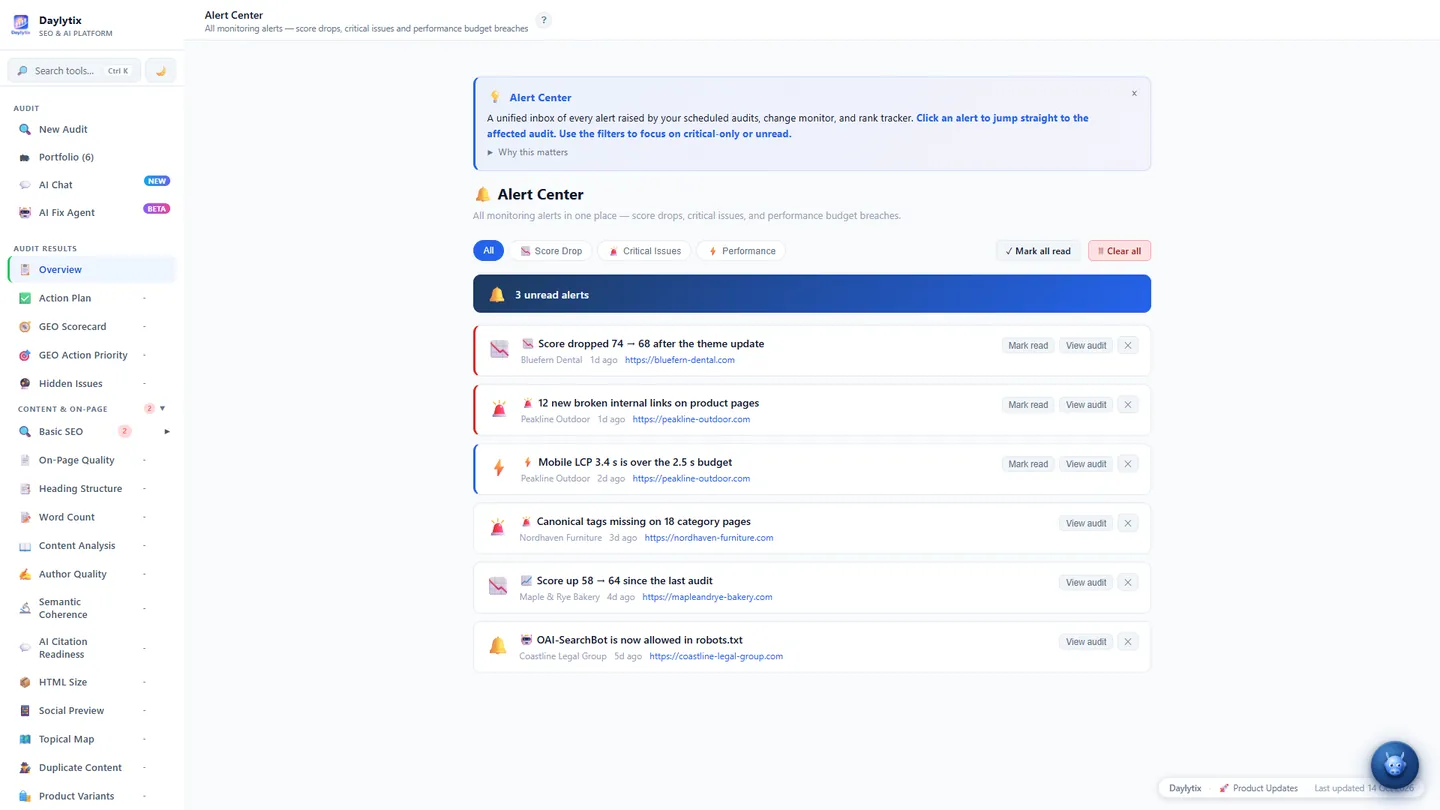
Monitoring. Schedule a site to re-audit weekly or monthly, set the LCP, CLS and PageSpeed thresholds you care about, and get an alert when a run crosses them. Change Monitor watches individual URLs for content, title and schema edits.

Questions people ask first

Do I have to add API keys to get value?
No. The crawl-based checks — about two thirds of the audit — run with no keys at all. Keys add three things: your own Search Console and GA4 data, true SERP positions and keyword metrics through DataForSEO, and the AI tools.
Whose API keys are used?
Yours. Keys entered in Settings are stored against your account, used only for your own audits, and never shared with other accounts. DataForSEO and the AI providers bill you directly.
How long does an audit take?
A small site is a few minutes. Time scales with the page limit and how quickly the site answers; page screenshots add a minute or two. One audit runs at a time per account and a queued one shows its position.
Why are Core Web Vitals only for the home page?
They come from Google’s PageSpeed API, which is rate limited. Running it for every crawled page would take hours and hit the quota. Your own free PageSpeed key raises the limit.
Why does a check say a page could not be read?
Some sites sit behind a firewall or bot protection that answers automated requests with a challenge page. Daylytix reports that plainly instead of describing the challenge page as your SEO problem.
What happens when the trial ends?
The account stays and access pauses until you pick a plan. Nothing you audited is deleted and your reports are waiting when you come back.
Can I audit a site I do not own?
Yes. The crawl reads public pages the same way a search engine does. Search Console and GA4 data need access the owner grants you.
Why did a section come back empty?
Usually one of three reasons: the check ran and found nothing wrong, the data source behind it is not connected, or the crawl did not reach enough pages for it to say anything. The section tells you which.