 Daylytix
Scheduled audits re-run a site automatically, daily, weekly or monthly, so you see problems without remembering to check, and the site's score builds up a history you can follow over time. Each schedule is called a monitor. Monitors are available on every plan.
Creating a monitor
- Open Monitoring → Scheduled Audits in the sidebar.
- Click Add Monitor.
- Enter the Site URL and, optionally, a Label such as the client’s name.
- Choose the Interval (daily, weekly or monthly), the time of day, and the day of the week or of the month (1-28).
- Choose Pages to crawl: 20, 30 (default), 50 or 75.
- Set up alerts and the PDF report (below), then click Save Monitor.
Alerts
| Setting | What it does |
|---|---|
| Alert if score drops by at least ... points | Alerts when the score falls by this much compared with the previous run (default 5). |
| Alert on new critical issues | Alerts when the run finds critical issues that were not there before. |
| Performance Budget Alerts | Alerts when LCP, CLS, or the mobile or desktop score crosses a budget you set. See Performance budgets. |
| Alert email | Where alert emails go. Sent through your own SMTP settings. |
| Slack Webhook URL | Posts the same alerts to a Slack channel. |
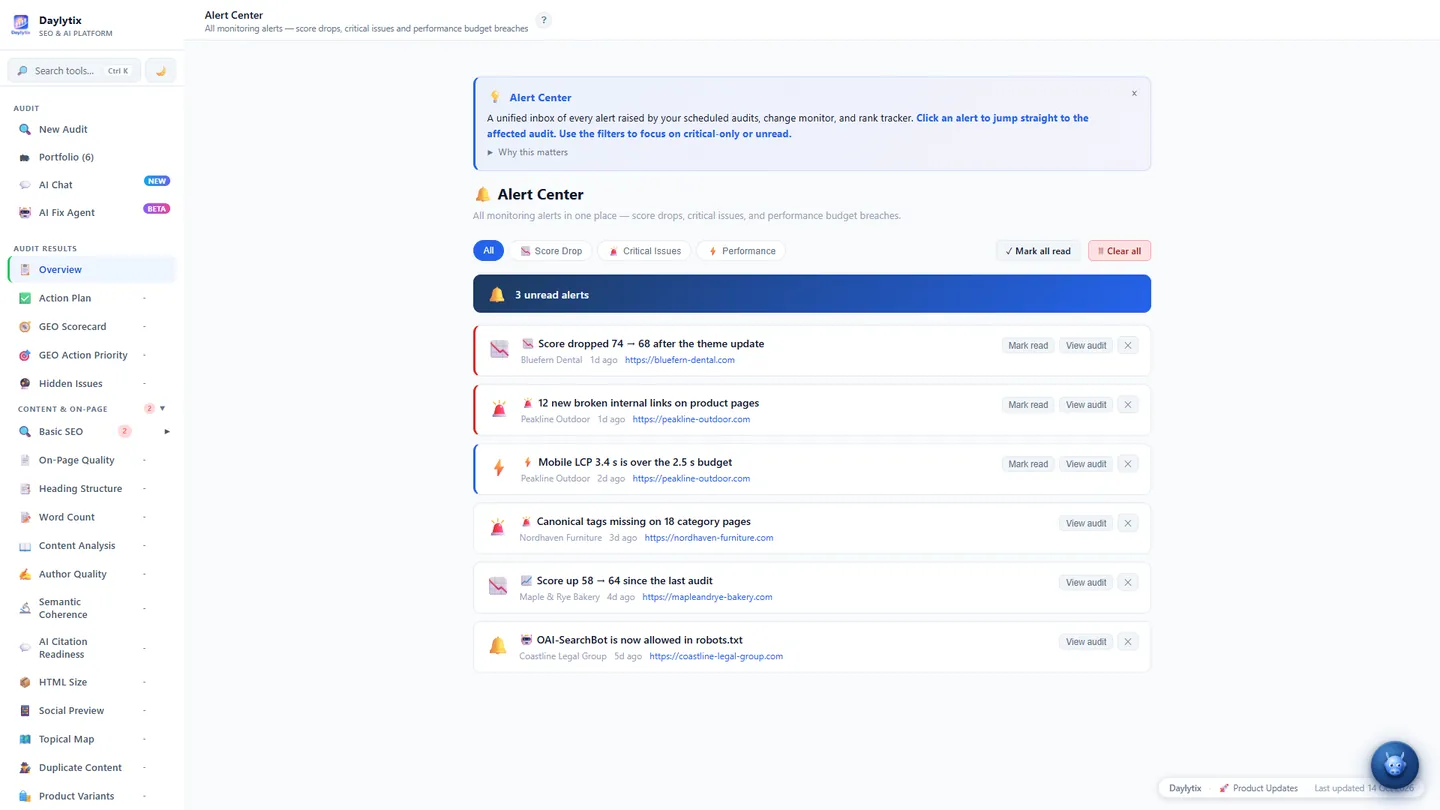
Every alert is also listed in Monitoring → Alert Center, whether or not you set an email or Slack destination.
Automated PDF report
Tick Enable under Automated PDF Report and enter the Report recipient email. After each run, the PDF of that audit is emailed to this one address. The report recipient and the alert email are separate fields, so a client can get the report while alerts come to you.
Managing monitors
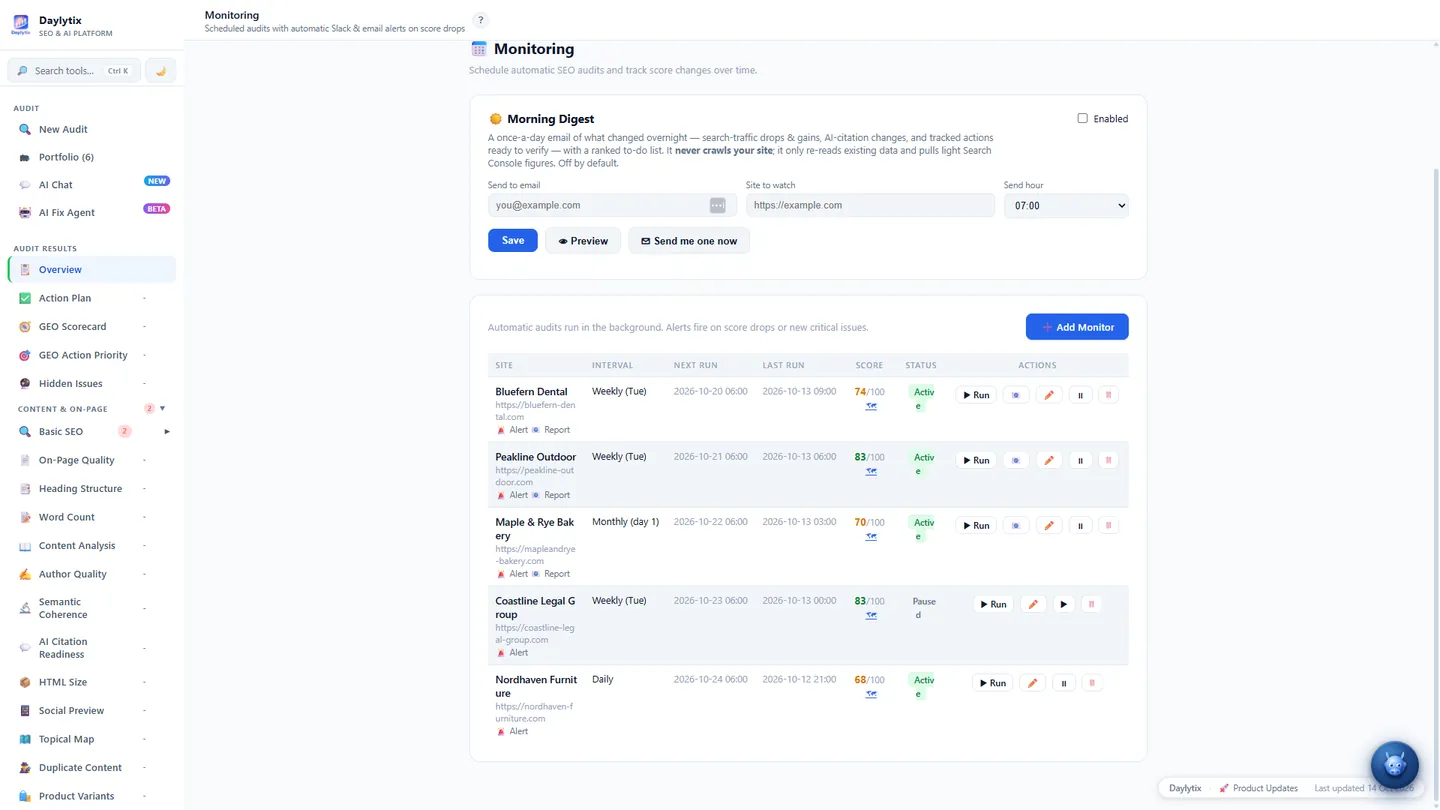
Each monitor row shows the interval, the next and last run, the last score and the status. The buttons on the row:
- ▶ Run - runs the audit now.
- - re-sends the PDF of the last run (shown when the report is enabled and the monitor has run at least once). You can change the recipient before sending.
- Edit, pause and delete.
Every run is saved like a normal audit, so it appears in Portfolio and Score History, and you can compare two runs in Compare Audits.
Tips
- Weekly is enough for most sites; use daily around a release or migration.
- Keep the page count the same between runs so scores stay comparable.
- Schedule runs at a quiet time for the site’s server.