 Daylytix
If you manage several sites - for clients or for yourself - Daylytix keeps each site’s audits together and gives you a few ways to share results. This guide covers the Portfolio, the client record, sharing with clients, and recurring audits.
How sites are organised
There is no separate project to create: every audited domain appears in Portfolio automatically, with its latest score and a short history. Your plan sets how many different domains you can audit: 1 on the trial and Starter, 5 on Pro and unlimited on Agency. www.example.com and example.com count as the same domain; other subdomains count separately.
The Portfolio
Open Portfolio at the top of the sidebar. Each site card shows the latest score, a sparkline of recent runs, the number of issues and pages, and a button to compare runs. You can search by URL and sort by date, score or number of issues.
Client records (Agency)
On the Agency plan (and during the trial), Agency → Clients (CRM) keeps a record per client: name, company, contact details, website, notes, tags, a colour, the client’s domains, and billing details. Click + to add one. The client view shows the number of domains and audits, the average score and the next scheduled audit, with tabs for Overview, History, Notes and Monitoring.
Sharing results with a client
Clients don’t get their own Daylytix login. There are three ways to share:
| Method | How it works | Plan |
|---|---|---|
| Report file | Download the PDF, PowerPoint or Excel workbook and send it yourself. | All plans (PowerPoint on Pro and Agency) |
| Share link | In an open audit, use More → Share Report. Pick how long the link works - 7, 14, 30 (default), 60 or 90 days, or never - and click Generate Link. Anyone with the link can view that audit without logging in. You can see and revoke your links in the same window. | All plans |
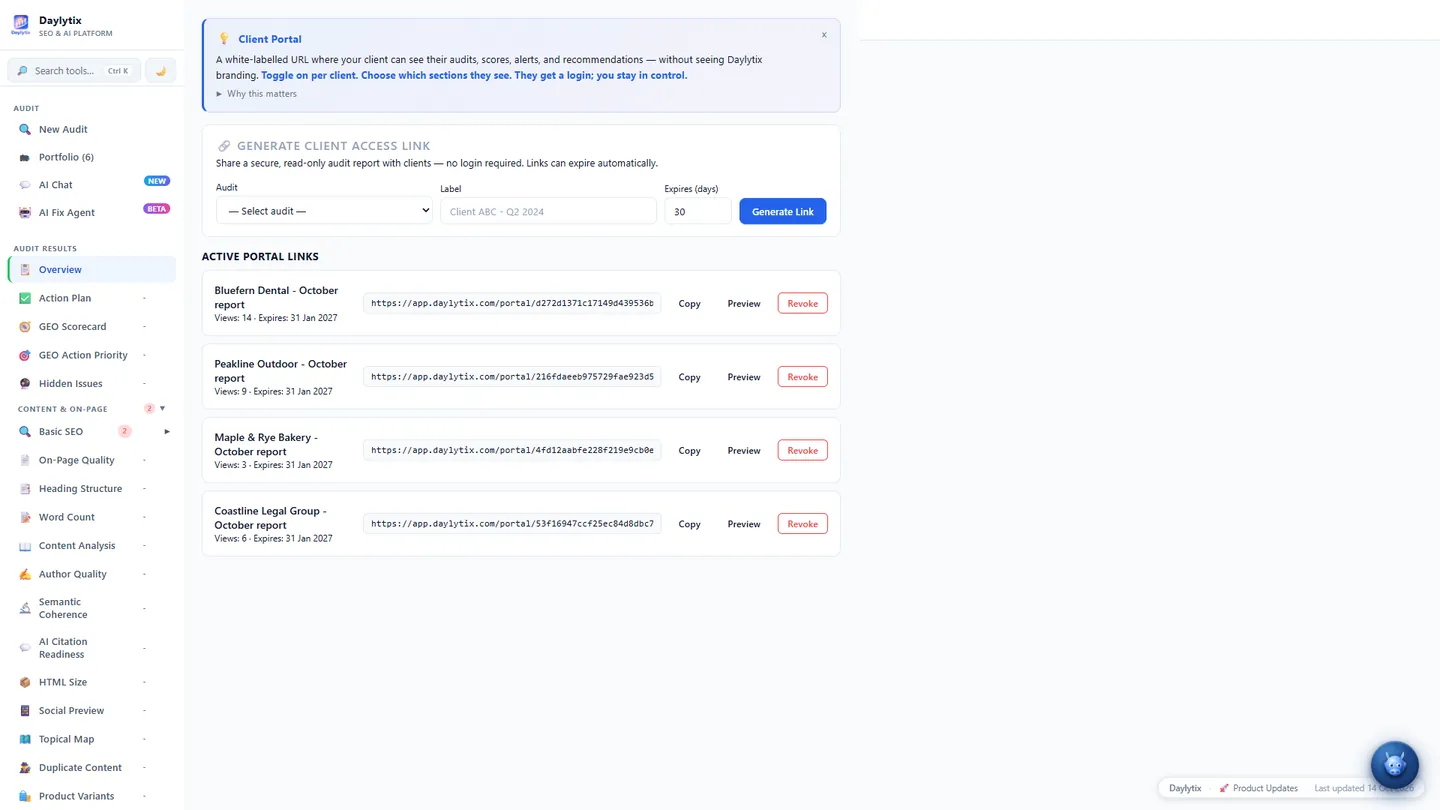
| Client Portal | A read-only, client-friendly page for one audit, opened by link with no login. Create it in Agency → Client Portal, give it a label and an expiry (default 30 days), and revoke it whenever you like. It shows how many times it was viewed. | Agency |
Putting the client’s name on a report
On the New Audit form, open Client info and enter the client name and notes. Both are printed on the PDF cover, so keep internal remarks out of the notes. Your own agency details come from App Settings → Branding.
Recurring audits for each client
Open Monitoring → Scheduled Audits and click Add Monitor. Set the site, how often it runs (daily, weekly or monthly), the time, and the day of the week or month. Optional extras per monitor:
- Alerts when the score drops by more than a threshold or new critical issues appear - sent to an alert email address and/or a Slack webhook.
- Automated PDF report emailed to one recipient after each run. Emails are sent through your own mail server, so add your SMTP details in App Settings → Notifications first.
See Scheduling audits for the details.