 Daylytix
Daylytix gives you two ways to organise client work. Portfolio lists every site you have audited and is on every plan. Clients (CRM) keeps a record per client, with their domains, audit history, notes and scheduled audits, and is part of the Agency plan.
How many sites you can audit
| Plan | Websites |
|---|---|
| Starter | 1 |
| Pro | 5 |
| Agency | Unlimited |
Portfolio: all your sites in one list
Open Portfolio in the sidebar. Each site shows its latest score, issues, pages crawled and the date of the last audit, with buttons to Re-Audit, View the latest audit, download the Report or delete. The cards at the top count your sites and audits, the average score and how many sites need attention. Use the filter box to find a site and the sort menu to order by date, score or issues.
Clients (CRM)
Find it under Agency → Clients (CRM) in the sidebar. If you use the short sidebar, turn on Show all tools to see the Agency group. On Starter and Pro the group is marked Agency and opens an upgrade window.
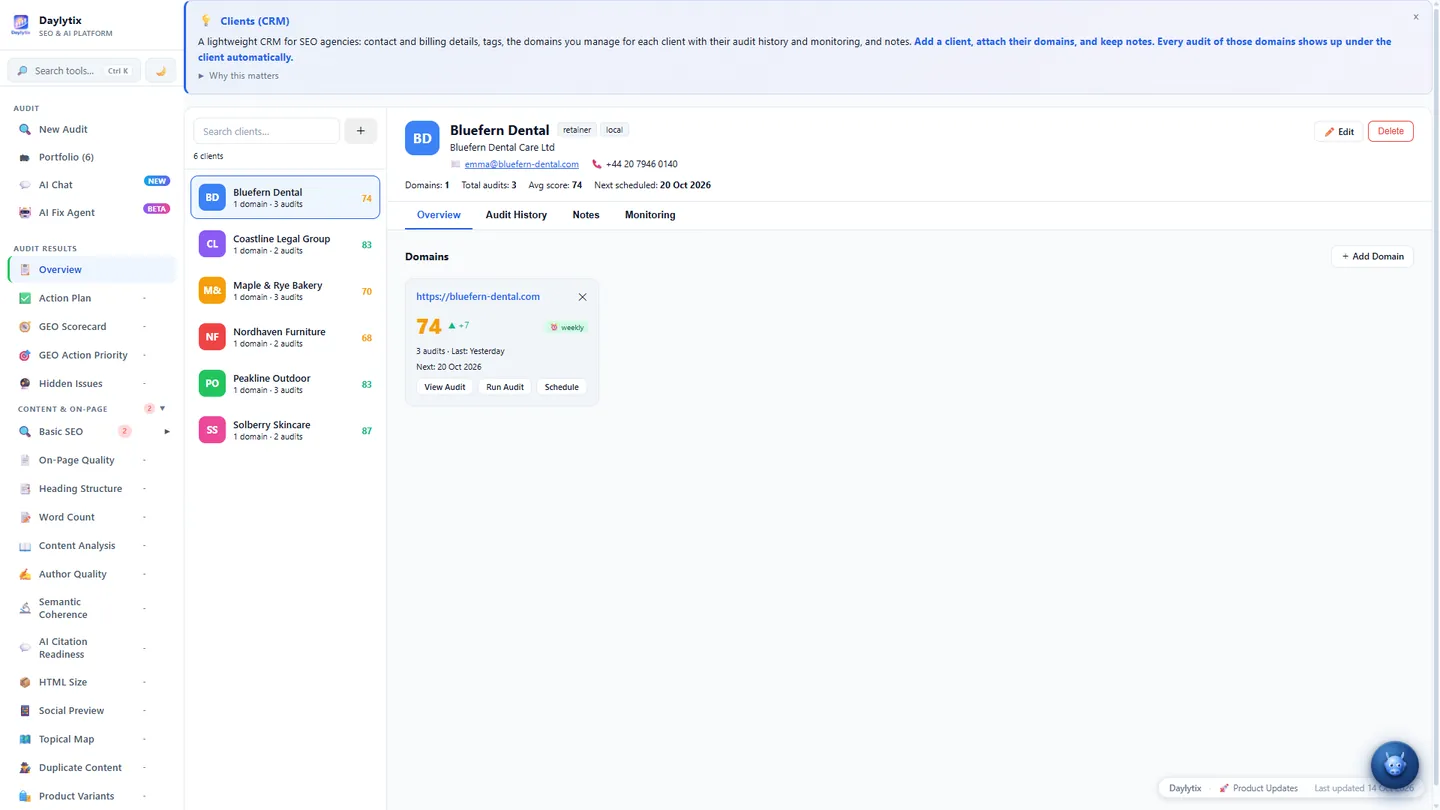
Adding a client
- Click + (New client).
- Fill in Client Name, the only required field. Optionally add Company, Email, Phone, Website, a Label colour, Tags and Billing Details such as the VAT number.
- Click Create Client.
Linking domains and audits
On the client's Overview, click + Add Domain and enter a URL, or pick one from the domains you have already audited. Every audit of that domain then shows up under the client automatically; the match is by hostname, and www is ignored.
Each domain card has three buttons:
- View Audit opens the latest audit.
- Run Audit opens the New Audit form with the URL filled in.
- + Schedule opens Scheduled Audits, where you can set up a recurring audit. See Scheduling audits.
The client tabs
| Tab | What it shows |
|---|---|
| Overview | Contact details and the client's domains. |
| Audit History | Every audit of the client's domains: date, domain, score, pages and issues, with buttons to view it or download the PDF. |
| Notes | Free-text notes; click Save Notes. |
| Monitoring | Scheduled audits for the client's domains: interval, next run, active or paused, any errors, and Open Monitor. |
Invoices
When you create an invoice in the invoice generator (Agency group), Import from CRM lets you pick a client so you do not retype their details.
Sharing results with the client
Clients do not get their own login. You share results instead:
- Share link (every plan): a read-only link to one audit, with an expiry you choose.
- Client Portal (Agency): a no-login link showing the client their reports.
- PDF or PowerPoint reports, downloaded or emailed on a schedule.
See Giving clients and colleagues access for the details.
Deleting a client
Deleting a client removes only the client record: contact details, domains list and notes. The audits themselves stay in your account and in Portfolio.